Docker Runner — Self-Host Your Bots on Any Server
The Docker Runner connects VolatiCloud to a Docker host you control — a VPS, cloud VM, or bare-metal server — where each bot runs as its own Freqtrade container. This is the simplest production-capable runner: one Linux box, Docker, and a TLS-protected daemon, and you can run dozens of isolated trading bots cost-effectively.
This page walks you through the secure-production path: TLS certificate generation, Docker daemon configuration, firewall setup, registering the runner in VolatiCloud, and optional S3 backups. For deciding between Docker and Kubernetes, see Runners Overview.
Prerequisites
- A Linux server with Docker installed (Ubuntu, Debian, Rocky, etc. all work)
- Your Docker port (default 2376 for TLS) reachable from the internet — VolatiCloud connects out to your host, from an address that is not fixed
- For production: Docker daemon configured with TLS authentication (not optional — see warning below)
- Optional: S3-compatible storage for bot database backups (AWS S3, MinIO, Cloudflare R2, etc.)
Quick Setup (Development Only)
Exposing the Docker daemon without TLS is a critical security risk. An unauthenticated Docker daemon over TCP gives anyone on the network root-equivalent access to the host. Only use the unencrypted form for local development on an isolated network. For anything reachable from the public internet, follow the Secure Production Setup below instead.
# /etc/docker/daemon.json — DO NOT use this on the public internet
{
  "hosts": ["unix:///var/run/docker.sock", "tcp://0.0.0.0:2376"]
}
Secure Production Setup (with TLS)
The production path uses mutual TLS — the Docker daemon presents a server certificate signed by a CA you control, and VolatiCloud authenticates with a client certificate signed by the same CA. No one without that client certificate can reach the daemon.
Step 1 — Generate TLS Certificates
# Generate CA key and certificate
openssl genrsa -aes256 -out ca-key.pem 4096
openssl req -new -x509 -days 365 -key ca-key.pem -sha256 -out ca.pem

# Generate server key and certificate (replace YOUR_SERVER_IP)
openssl genrsa -out server-key.pem 4096
openssl req -subj "/CN=YOUR_SERVER_IP" -sha256 -new -key server-key.pem -out server.csr
echo subjectAltName = IP:YOUR_SERVER_IP,IP:127.0.0.1 >> extfile.cnf
echo extendedKeyUsage = serverAuth >> extfile.cnf
openssl x509 -req -days 365 -sha256 -in server.csr -CA ca.pem -CAkey ca-key.pem \
  -CAcreateserial -out server-cert.pem -extfile extfile.cnf

# Generate client key and certificate
openssl genrsa -out key.pem 4096
openssl req -subj '/CN=client' -new -key key.pem -out client.csr
echo extendedKeyUsage = clientAuth > extfile-client.cnf
openssl x509 -req -days 365 -sha256 -in client.csr -CA ca.pem -CAkey ca-key.pem \
  -CAcreateserial -out cert.pem -extfile extfile-client.cnf
This produces:
| File | Used by | Stays on |
|---|---|---|
ca.pem | Both server and client | Both |
server-cert.pem, server-key.pem | Docker daemon | Server only |
cert.pem, key.pem | VolatiCloud client | Pasted into VolatiCloud's runner config |
Step 2 — Configure the Docker Daemon
Move the server certificates into a path Docker can read (e.g., /etc/docker/certs/), then edit /etc/docker/daemon.json:
{
  "tlsverify": true,
  "tlscacert": "/etc/docker/certs/ca.pem",
  "tlscert": "/etc/docker/certs/server-cert.pem",
  "tlskey": "/etc/docker/certs/server-key.pem",
  "hosts": ["unix:///var/run/docker.sock", "tcp://0.0.0.0:2376"]
}
Restart Docker so the new configuration applies:
sudo systemctl restart docker
Step 3 — Configure the Firewall
VolatiCloud connects out to your Docker host, and that connection has no fixed source address — it leaves from whichever cluster node is handling it at the time, and that changes. A ufw allow from <some-volaticloud-address> rule works until it silently stops working, and your runner goes unreachable with bots on it.
Port 2376 needs to accept connections from the internet. The access control on that port is the mutual TLS you configured in Step 2, not a source-IP rule: the daemon rejects any client that cannot present a certificate signed by your CA.
ufw allow 2376/tcp
Keep tlsverify on in daemon.json. Without it, an open 2376 hands root-equivalent access to the host to anyone who finds it — the source-IP rule was never what was protecting you.
Step 4 — Verify Locally
From the server itself, verify Docker is listening over TLS:
docker --tlsverify \
  --tlscacert=ca.pem \
  --tlscert=cert.pem \
  --tlskey=key.pem \
  -H=tcp://YOUR_SERVER_IP:2376 \
  version
You should see both client and server versions returned. If the command hangs, the firewall is dropping the connection. If TLS fails, regenerate certificates with the correct subjectAltName.
Registering the Runner in VolatiCloud
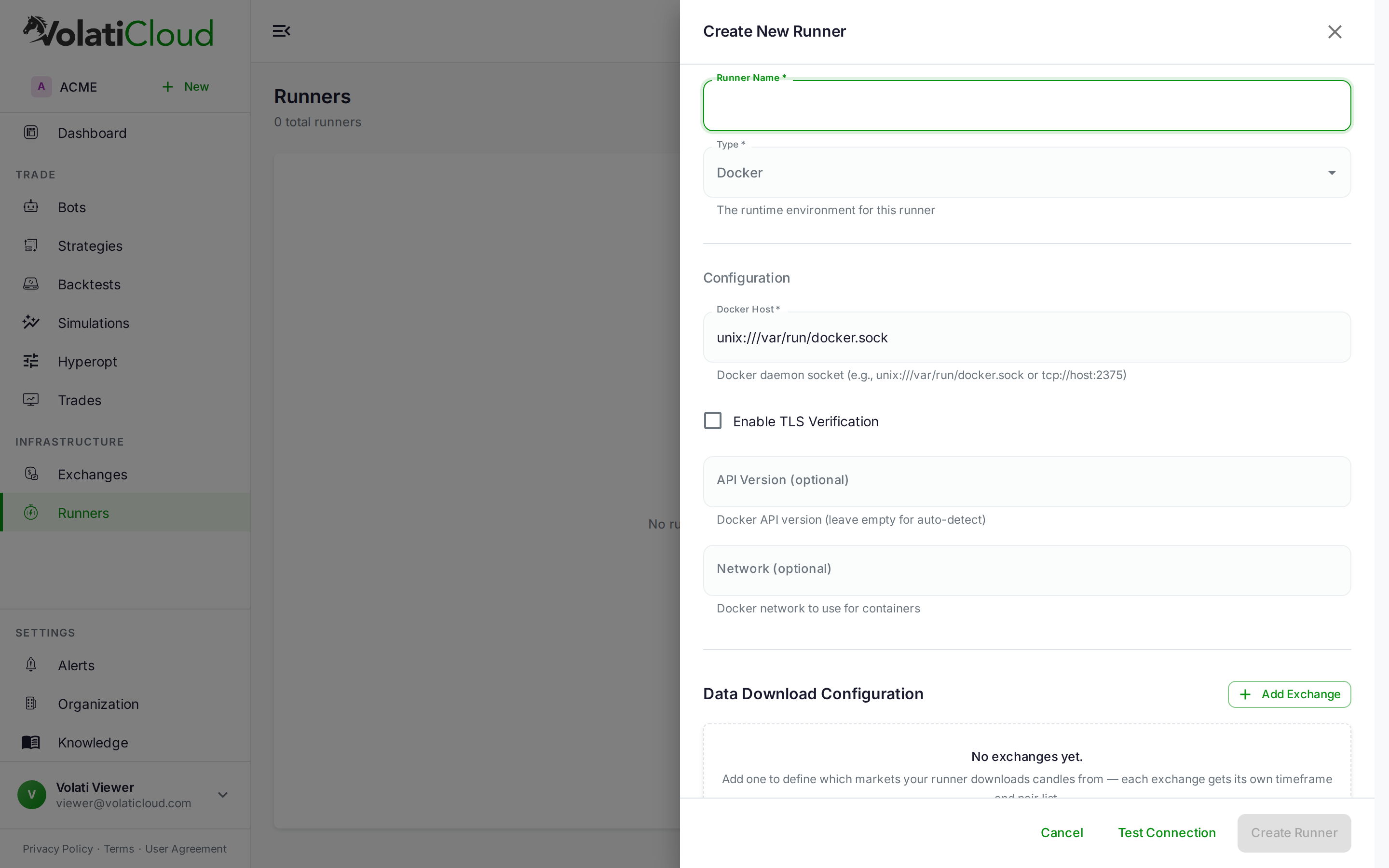
- Open Runners → Create Runner
- Pick the Docker runner type
- Fill in the connection fields shown in the table below
- Click Test Connection — VolatiCloud connects to your Docker daemon to verify the credentials work
- Click Create Runner
| Field | Value |
|---|---|
| Docker Host | tcp://YOUR_SERVER_IP:2376 |
| Enable TLS Verification | On — the certificate fields appear once it is switched on |
| Client Certificate (PEM) | Contents of cert.pem |
| Client Key (PEM) | Contents of key.pem |
| CA Certificate (PEM) | Contents of ca.pem |
The TLS materials are encrypted at rest using field-level AES-256-GCM before they're stored.
Optional: S3 Storage for Database Backups
Configuring S3 lets the runner upload each bot's SQLite database on stop and restore it on next start, so trade history persists across container restarts and runner moves.
| Field | Description |
|---|---|
| Endpoint | S3 endpoint URL (AWS, MinIO, Cloudflare R2, Backblaze B2) |
| Bucket | S3 bucket name |
| Access Key | S3 access key ID |
| Secret Key | S3 secret access key |
| Region | AWS region (e.g., us-east-1) |
| Use SSL | Enable HTTPS for the endpoint |
Click Test S3 Connection to verify the credentials. The S3 access key is encrypted at rest with the same field-level encryption as the TLS materials.
The architectural rationale for SQLite-to-S3 backups: ADR-0032 — Bot Database Backup Strategy.
Downloading Historical Data
Bots and backtests need historical OHLCV data on the runner. Pre-cache it once per runner instead of having every bot fetch its own copy:
- Open the runner
- Click Refresh Data
- Pick:
- Exchange (e.g., Binance)
- Timeframes (e.g., 1h, 4h)
- Pair pattern (e.g.,
.*USDT) - Days of history (e.g., 365)
- Click Start Download and watch the progress
Downloaded data lives in the runner's data directory and is shared by every bot and backtest on that runner.
Server Sizing Guidelines
| Bots | RAM | CPU | Storage |
|---|---|---|---|
| 1–5 | 2 GB | 1 vCPU | 20 GB |
| 5–20 | 4 GB | 2 vCPU | 50 GB |
| 20–50 | 8 GB | 4 vCPU | 100 GB |
| 50+ | 16+ GB | 8+ vCPU | 200+ GB |
Storage scales with retained OHLCV history and per-bot SQLite database size. Consider an SSD for the data volume — backtests do a lot of random reads against historical data.
Troubleshooting
Connection refused
- Verify Docker is running:
sudo systemctl status docker - Check the firewall allows inbound 2376 (
ufw status) — a source-IP rule naming a VolatiCloud address is a common cause, and cannot be made to work - Confirm Docker is listening on TCP:
sudo ss -tlnp | grep 2376
TLS handshake failed
- All three certificates (CA, server, client) must be signed by the same CA
- Server certificate's
subjectAltNamemust include the IP you're connecting to - Check expiry:
openssl x509 -noout -dates -in ca.pem
Bot fails to start on the runner
- Pull the Freqtrade image manually to verify the runner has internet egress:
docker pull freqtradeorg/freqtrade:stable - Check container logs:
docker logs <container-id> - Confirm the runner has enough free disk space for the bot's database
Related guides
- Runners Overview — Docker vs Kubernetes vs Local trade-offs.
- Kubernetes Runner — Move to Kubernetes once you outgrow a single host.
- Creating a Bot — Attach the new runner to a bot and start trading.
- Security — IP Allowlisting — Why VolatiCloud has no fixed egress addresses, for firewalls and exchange keys alike.