Organizations — Your VolatiCloud Workspace
An Organization is the unit of isolation in VolatiCloud. Every strategy, bot, exchange connection, runner, alert rule, credit balance, and Stripe subscription belongs to exactly one organization. You can be a member of multiple organizations (with potentially different roles in each) and switch between them from the top navigation, but resources never cross the organization boundary.
This page covers what an organization holds, how the alias and UUID identifiers work, when to create separate organizations, and the basics of role-based access. For inviting team members and managing roles in detail, see Team Management.
What an Organization Contains
| Resource | Scope |
|---|---|
| Strategies | Per-org |
| Bots | Per-org |
| Exchange connections | Per-org |
| Runners (Docker, Kubernetes) | Per-org |
| Alert rules and event history | Per-org |
| Credit balance | Per-org |
| Stripe subscription and invoices | Per-org |
| API clients (programmatic access) | Per-org |
| Members and role assignments | Per-org |
Switching organizations rebinds all of the above to the org you're currently viewing. Public resources within an org are visible to all members; private resources are visible only to the owner and explicit collaborators (per ADR-0008 — Multi-Tenant Authorization).
Creating an Organization
When you sign in for the first time, VolatiCloud prompts you to create your initial organization:
- Enter an Organization Name (e.g., "Acme Trading")
- An Alias is auto-generated from the name (e.g.,
acme-trading) — you can edit it before saving - You become the Admin of the new organization
You can create additional organizations later from the org switcher in the top navigation.
Organization Identifiers — Alias and UUID
Every organization has two identifiers, each used in different contexts:
| Identifier | Example | Used for |
|---|---|---|
| UUID | f47ac10b-58cc-4372-a567-0e02b2c3d479 | Internal references, GraphQL queries, audit logs |
| Alias | acme-trading | Human-readable URLs, billing references, in-app navigation |
The alias is:
- 3–50 characters, lowercase letters, numbers, and hyphens
- Cannot start or end with a hyphen
- Immutable once set — pick something you'll be happy with long-term
- Globally unique across all VolatiCloud organizations
The dashboard URL uses the alias for readability (e.g., /org/acme-trading/bots), while the GraphQL API generally accepts both forms. Architectural background: ADR-0012 — Organization Alias System.
Organization Settings
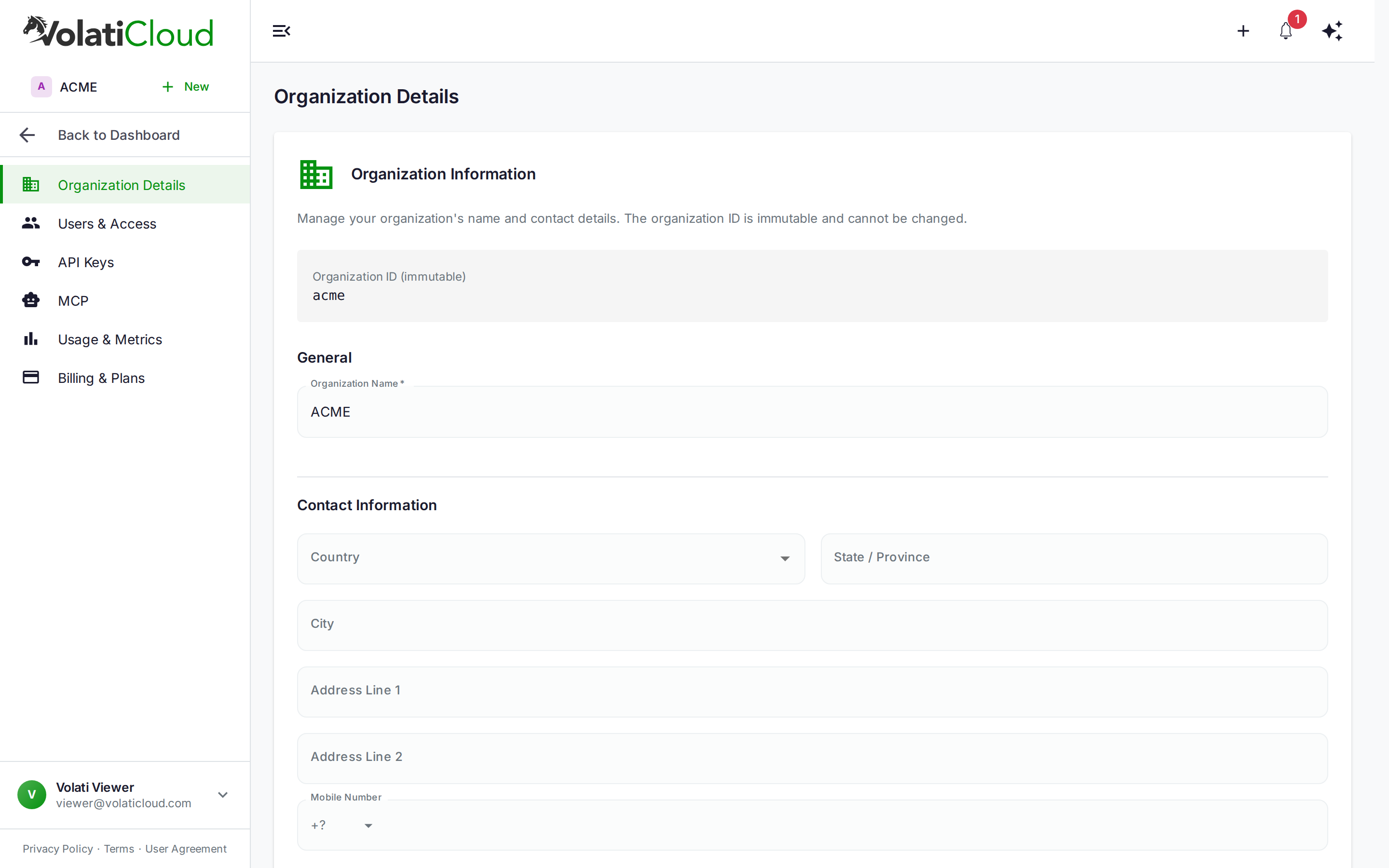
Edit organization metadata from Organization → Details:
- Organization name
- Country, state, city, address, phone (used for tax/invoice purposes)
The alias is shown read-only — to change it, you'd have to create a new organization and migrate.
Organization Roles
VolatiCloud uses two organization-level roles:
| Role | Permissions |
|---|---|
| Admin | Full access — create resources, start/stop bots, manage billing, invite users, change roles |
| Viewer | Read-only access — see bots, strategies, backtests, and metrics; cannot make changes or spend credits |
The split exists so you can share live trading visibility (with stakeholders, auditors, or junior team members) without giving them the ability to modify production trading or spend credits. Roles are assigned per-organization, so the same user can be Admin in one org and Viewer in another.
For the full per-action permission matrix, invite flow, and role-change procedures, see Team Management.
Organization Permission Scopes
Beyond Admin and Viewer roles, VolatiCloud also uses fine-grained UMA scopes for organization-level capabilities. Admins hold all of these; Viewers hold none by default. The relevant scopes:
| Scope | Capability |
|---|---|
create-strategy / create-bot / create-exchange / create-runner | Create new resources of each type |
invite-user, change-user-roles | Manage organization members |
view-subscription-status | See plan and renewal date (granted to all members) |
view-billing, manage-billing | See invoices and credit history; subscribe and deposit (admin only) |
manage-api-clients | Create, update, delete API clients for programmatic access (admin only) |
view-secrets | Read sensitive config (API keys, kubeconfigs, S3 credentials) |
Architectural background: ADR-0008 — Multi-Tenant Authorization and ADR-0057 — In-Process Permission Cache.
Multiple Organizations and the Org Switcher
You can be a member of any number of organizations. Switch between them via the org switcher in the top navigation — every page in the dashboard rebinds to show only the active organization's resources.
If you're managing trading for multiple clients, give each client their own organization. Billing, credits, and user access stay cleanly separated, and you can hand over admin rights to the client without touching your other accounts.
When to Create a New Organization
Create a separate organization whenever you need a hard boundary between resources, billing, or team members. Common scenarios:
| Scenario | Why a separate org |
|---|---|
| Managing trading for multiple clients | Each client gets their own billing, credits, and invoices |
| Production vs sandbox | Keep experimental strategies and exchange keys away from live trading |
| Onboarding a business partner | Limit their visibility to a single workspace, not your primary account |
| Multiple trading entities | Each legal entity needs its own invoices and audit trail |
Each organization carries its own subscription, so resource costs are cleanly tracked per workspace.
Resource Ownership and Visibility
All resources are owned by the organization, not by individual users. Within an organization:
- Public resources are visible to all members (read-only by default; collaborators can edit)
- Private resources are visible only to the owner and explicit collaborators
- Sensitive config fields (exchange API keys, runner credentials) require the
view-secretsscope to read
Removing a user from the organization removes their access immediately, but the resources they created stay with the organization. Their past activity (trades, backtests, strategy edits) is preserved in audit logs.
Disabling an Organization
Admins can disable an organization from Organization → Details:
- Click Disable Organization
- Confirm the action
Disabling does not delete data — strategies, bots, backtests, and trade history are preserved. The organization is deactivated, all running bots are stopped, and members cannot sign in until it's re-enabled.
Disabling an organization stops every running bot and locks every member out. Use it for offboarding scenarios — not as a temporary pause.
Next Steps
- Team Management — Invite members, assign roles, manage resource access.
- Billing Overview — Per-org subscription, credits, and suspension rules.
- Alert Rules — Notify the right team members when bots, billing, or runners need attention.