Team Management — Invite, Assign Roles, Share Safely
VolatiCloud's team management features let you bring collaborators into your organization, assign them roles, and control which resources they can see, edit, or run. Sensitive config (exchange API keys, runner credentials) is gated behind the separate view-secrets scope, so you can share an exchange connection across a team without revealing the underlying API key — the most common pattern for funds and trading desks where the key holder isn't the strategy author.
This page covers the invite flow, the role and permission matrix, resource visibility, and the best practices we recommend for managing access at scale. For organization-level concepts (alias, multi-org switching, billing scope), see Organizations Overview.
Team Management with multiple seats is available on the Enterprise plan. Starter and Pro plans support a single seat per organization. See Plans & Pricing for the seat allocation per plan.
Roles at a Glance
Every member has one of two organization-level roles:
| Role | Description |
|---|---|
| Admin | Full organization control — create and manage resources, manage billing, invite users, change roles |
| Viewer | Read-only — see resources, metrics, and event history; cannot modify or spend credits |
The role splits read access from write access so you can:
- Give a stakeholder real-time visibility into trading without letting them touch live bots
- Onboard a junior team member as Viewer first, then promote to Admin once they've ramped
- Hand auditors permanent read-only access without per-resource provisioning
Permission Matrix
| Capability | Admin | Viewer |
|---|---|---|
| View bots, strategies, exchanges, runners | Yes | Yes |
| View backtest results and trade history | Yes | Yes |
| Create bots, strategies, exchanges, runners | Yes | No |
| Edit bots, strategies, exchanges, runners | Yes | No |
| Start / stop bots | Yes | No |
| Run backtests, hyperopt | Yes | No |
| View billing | Yes | No |
| Manage billing (subscribe, deposit, change plan) | Yes | No |
| Invite users, change user roles | Yes | No |
| View organization settings | Yes | Yes |
View sensitive config (API keys, etc.) — view-secrets | Yes (by default) | No |
Roles map to UMA scopes documented in ADR-0008 — Multi-Tenant Authorization. The full scope list is in Organizations Overview.
Inviting Team Members
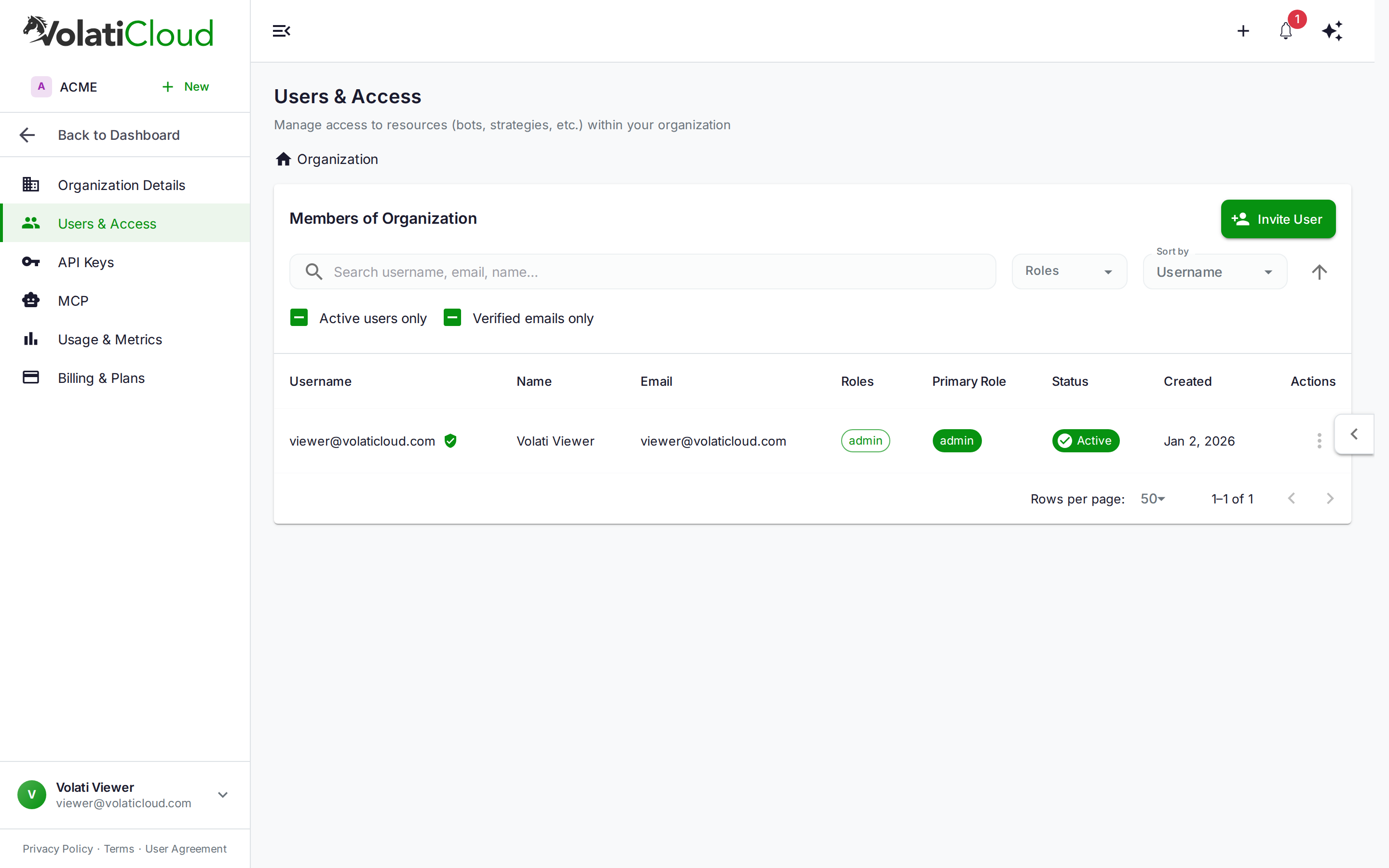
- Open Organization → Users
- Click Invite User
- Enter the user's email address
- Optionally pick the role (default: Viewer)
- Click Send Invitation
The invited user receives an email with a join link. If they don't already have a VolatiCloud account they'll be prompted to create one. Once they accept, they appear in the Users table with the role you assigned.
Invitation Expiry and Cancellation
Invitations expire after 7 days. To resend or cancel:
- Open Organization → Users → Pending Invitations
- Click Cancel to revoke the invitation, or
- Click Resend to refresh the 7-day window
If an invitation expires before the user accepts, send a fresh one.
Changing a Member's Role
- Open Organization → Users
- Find the member in the list
- Click the role badge in their row
- Select the new role from the menu
You cannot change your own role — admins can't downgrade themselves to Viewer (it would lock them out of admin operations). Another admin must make the change.
Removing a Member
- Open Organization → Users
- Find the member
- Open the actions menu (⋮) and click Remove
- Confirm
The member loses access immediately. Their past activity (trades, backtests, strategy edits, audit log entries) is preserved for compliance and history — only their ability to sign in is revoked.
Public vs Private Resources
Every resource (bot, strategy, exchange, runner) has a visibility setting that determines who in the organization can see and use it.
| Visibility | Who can see | Who can use |
|---|---|---|
| Private (default) | Owner + explicit collaborators | Owner + explicit collaborators |
| Public | All organization members | All organization members |
Making a resource public is how you share it with the team. A public bot's status, metrics, and analytics become visible to all members; its sensitive config (exchange API key, runner credentials) remains hidden behind the view-secrets scope.
Public/private state is set per-resource via the relevant set*Visibility mutation in GraphQL, or via the visibility toggle in the dashboard. See Strategies — Visibility and similar sections for the resource-specific UI.
The view-secrets Scope — Safe Credential Sharing
Sensitive config fields are protected by the view-secrets UMA scope. The fields it gates:
exchange.config.api_key,api_secret,password,private_keyrunner.config.docker.certPEM,keyPEM,caPEMrunner.s3_config.accessKeyId,secretAccessKeybot.secure_config.*paths declared by the bot package
How this plays out in practice:
- Admins can grant
view-secretsto specific members (typically a small set of trusted operators) - A regular admin without
view-secretscan still attach a public exchange to a new bot — they just never see the underlying API key - Even the dashboard uses lazy queries to avoid fetching secrets unless a user is editing the resource
This is the design pattern that lets a team of 5 traders share one exchange connection where only the org owner ever sees the API key. Architectural background: ADR-0026 — Field-Level Encryption and ADR-0008 — Multi-Tenant Authorization.
Resource Groups
Resources are bucketed into groups for high-level access management:
| Group | Resources |
|---|---|
| Strategies | All strategy resources |
| Bots | All bot resources |
| Exchanges | All exchange connections |
| Runners | All bot runners |
View per-group membership and roles via Organization → Users → select a resource group. This is useful for confirming "who can see what" at a glance during access reviews.
Audit Trail
Every meaningful action is logged for audit:
- Resource creates, edits, and deletes
- Bot starts, stops, and restarts
- Backtest and hyperopt launches
- Sensitive-field reads (gated by
view-secrets) - Role changes and member additions or removals
- Billing changes (subscribe, cancel, plan change, top-up)
Audit logs are visible to organization admins and exportable. They're the canonical record for "who did what when" — useful for compliance, troubleshooting, and access reviews.
Best Practices
- Principle of least privilege. Default new members to Viewer; promote to Admin only when they need write access.
- Two-admin minimum. Always keep at least two admins in an organization — if the only admin loses access (lost device, departed company, locked out of email), the org becomes unmanageable.
- Review access quarterly. Revoke members who no longer need access; downgrade members whose responsibilities have changed.
view-secretsis for operators, not viewers. Grant it sparingly. Most admins don't need it day-to-day if exchange connections are already configured.- Separate environments via separate organizations. Don't try to use roles to cordon off a "production" subset within a sandbox org — create a separate organization.
- Audit log review cadence. Schedule quarterly reviews of role changes, billing actions, and sensitive-field reads. Surprise findings are easier to investigate while events are fresh.
Related guides
- Organizations Overview — Aliases, multi-org switching, organization lifecycle.
- Plans & Pricing — Plan-by-plan seat allocation and team-management eligibility.
- Alert Rules — Route notifications to specific roles or recipients.
- Security — API Keys — Per-key permission scoping and rotation cadence.