Exchange Connections on VolatiCloud
An Exchange in VolatiCloud is a saved connection to a cryptocurrency exchange — your API key, secret, and any extra credentials (passphrase for Bitget, KuCoin, OKX or MyOKX) — that live bots use to place orders. You connect an exchange once, and then any bot you create can use that connection without re-entering credentials.
You only need one to trade live. Market data, backtesting, hyperopt, and dry-run bots need no exchange connection at all, on any of the 14 venues VolatiCloud covers.
This page covers how to add a connection through the guided wizard, what permissions to enable on the exchange side, and how VolatiCloud protects your keys at rest and at runtime. For per-exchange API setup walkthroughs, see Supported Exchanges.
Which venues take a live key
VolatiCloud covers every exchange Freqtrade integrates with — 14 venues for market data, backtesting and dry-run bots. A live key is accepted where VolatiCloud can prove it is withdrawal-disabled by querying the exchange's own permission API. Those venues are Binance, BingX, Bitget, Bybit, HTX, Kraken, KuCoin, OKX and MyOKX (EEA) — nine of the fourteen, after probers for BingX, Bitget and HTX shipped. The rest are research venues, and the list grows as each venue's prober lands.
The catalog is the single source of truth in api/internal/exchange/catalog.go — it carries both the venue metadata and whether that venue can hold live credentials.
| Exchange | Live keys | Spot | Futures | Margin | Passphrase | Notes |
|---|---|---|---|---|---|---|
| Binance | Accepted | Yes | Yes | Yes | — | Largest exchange by volume |
| Binance US | Research only | Yes | — | — | — | US-regulated; spot only |
| BingX | Accepted | Yes | — | — | — | Spot and copy trading |
| Bitget | Accepted | Yes | Yes | — | Required | Strong futures liquidity |
| BitMart | Research only | Yes | — | — | — | Broad altcoin coverage |
| Bitvavo | Research only | Yes | — | — | — | Dutch DNB-regulated |
| Bybit | Accepted | Yes | Yes | — | — | Major derivatives venue |
| Gate.io | Research only | Yes | Yes | — | — | Extensive altcoin and futures markets |
| HTX | Accepted | Yes | — | — | — | Formerly Huobi |
| Hyperliquid | Research only | Yes | Yes | — | — | On-chain perpetuals DEX |
| Kraken | Accepted | Yes | Yes | — | — | US-based, long-running |
| KuCoin | Accepted | Yes | — | — | Required | Early altcoin listings |
| OKX | Accepted | Yes | Yes | — | Required | Global, deep order books |
| MyOKX (EEA) | Accepted | Yes | Yes | — | Required | OKX endpoint for EEA users (my.okx.com) |
For per-exchange API key creation steps, link domains, and the reasoning behind the two tiers, see Supported Exchanges.
Adding an Exchange — The Two-Step Wizard
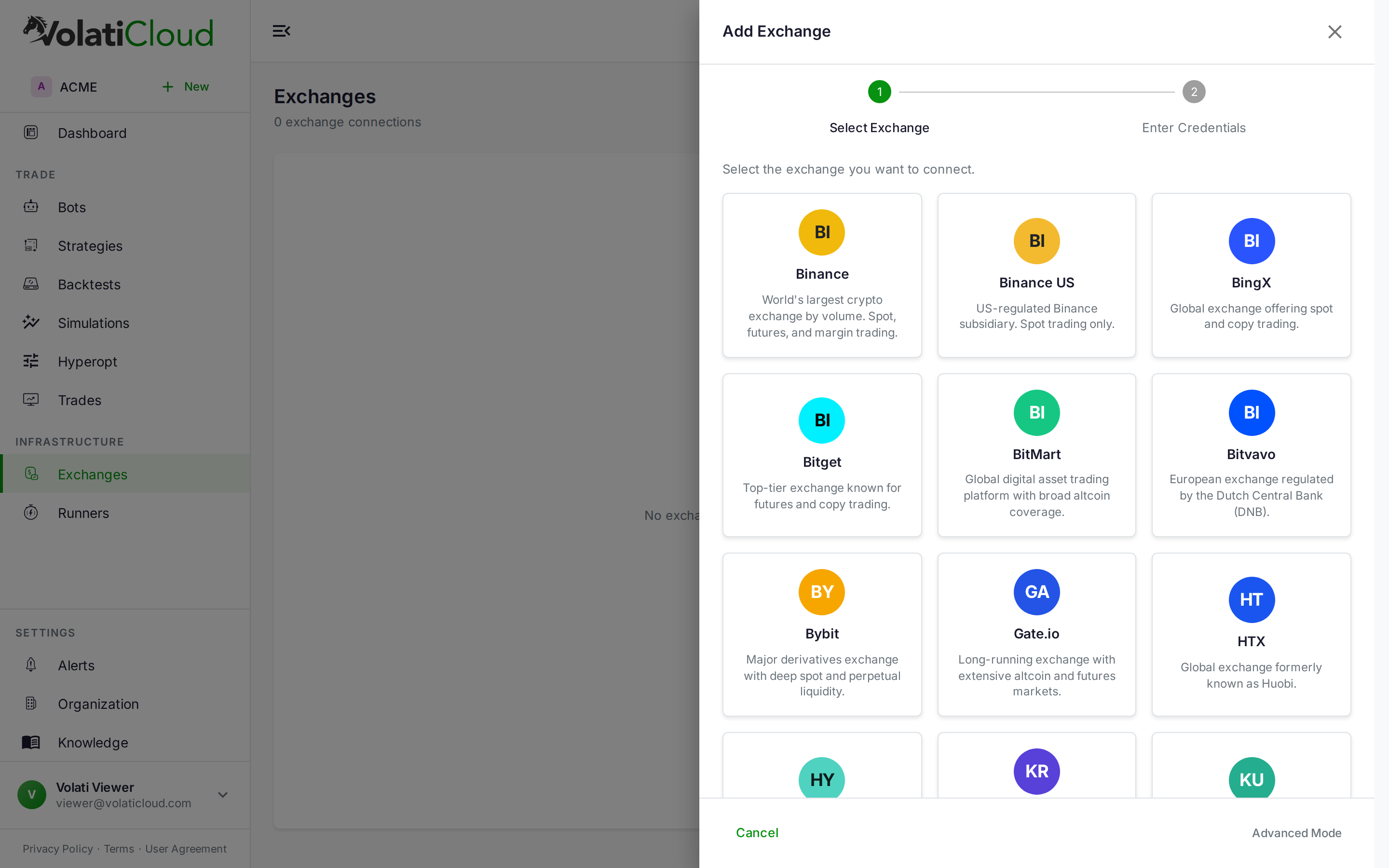
When you click Add Exchange, VolatiCloud opens a guided two-step wizard inside a single drawer. No JSON, no YAML, no Freqtrade config knowledge required for the common path.
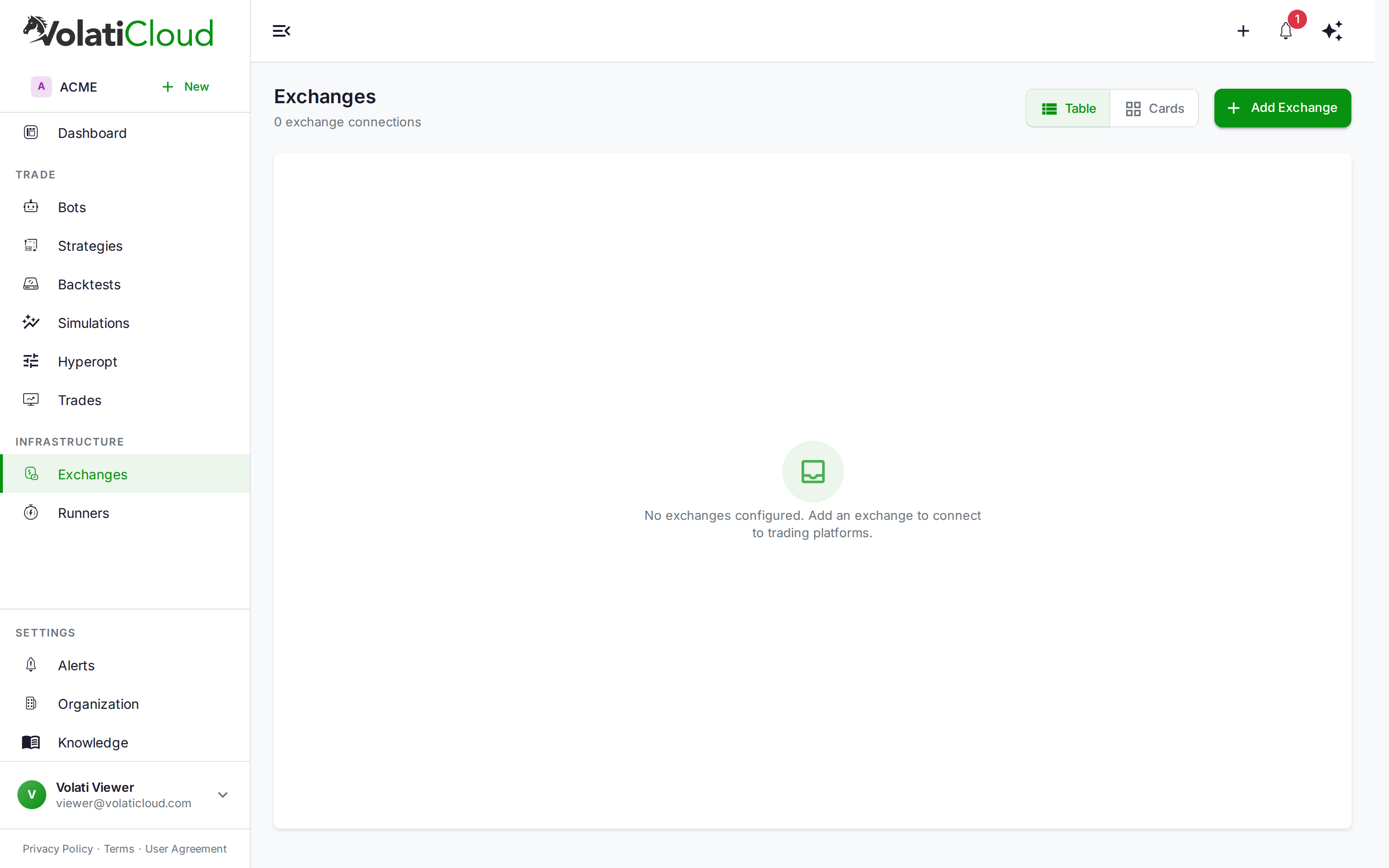
Step 1 — Pick the Exchange
The first screen is a visual grid of cards, one per venue in the catalog, with brand colors and a one-line description. Click the card for the exchange you want to connect. Cards for research venues are there too — the verification happens at submit, and a key VolatiCloud cannot verify is refused rather than stored.
Step 2 — Enter Credentials
The drawer transitions to a credentials form scoped to the exchange you picked. Required fields:
| Field | Description |
|---|---|
| Connection name | Label for this connection (e.g., "Binance Production", "KuCoin Sub-Account") |
| API key | The exchange-issued API key |
| API secret | The exchange-issued API secret |
| Passphrase | Required for Bitget, KuCoin, OKX, and MyOKX |
Use the Open API Management helper link to jump directly to the exchange's API page if you haven't created keys yet. Click Connect Exchange to save — VolatiCloud probes the key to verify it has the trade scope and rejects it if withdrawal capability is enabled, or if the venue offers no way to prove withdrawals are off.
Advanced Mode
Need full Freqtrade configuration control — custom pair whitelists, ccxt_config, trading-mode overrides? Click Advanced Mode in the wizard to switch to the raw JSON config form. The wizard handles 95% of cases; Advanced Mode is the escape hatch.
The wizard sets a wildcard pair whitelist (.*) by default, meaning bots can trade any available pair on this exchange. Edit the connection later to narrow this if you want to restrict bots to specific markets.
Editing an Exchange Connection
Open the Actions menu (⋮) on the exchange row in the list and select Edit. The edit form always renders the full configuration — you can update API keys, change pair whitelists, switch trading modes, or modify any field at any time. Saving the form re-encrypts updated secret fields.
Security: How VolatiCloud Protects Your Keys
API keys are the most sensitive credential you give us, and security is layered defensively to keep them safe at rest, in transit, and at runtime.
Withdrawal-Disabled Enforcement
VolatiCloud only accepts keys it can prove have the withdrawal permission disabled. When you save a connection, the backend probes the exchange's permission API; if the key has any withdrawal scope enabled, the connection is rejected with a message asking you to regenerate the key without it.
The same rule decides which venues take a live key at all. A venue whose API cannot answer "can this key withdraw?" has no prober, so no key is stored for it — you research and paper-trade there instead. That is the guarantee working, not a gap in it.
This is a hard guarantee enforced in the backend (see api/internal/exchange/permissions.go). Even if VolatiCloud's database were fully compromised, an attacker could attempt adverse trades but could not initiate withdrawals.
For deeper background, see Security — API Keys.
Field-Level Encryption at Rest
API keys, secrets, passphrases, and private keys are encrypted with AES-256-GCM before they reach the database. Each value gets a fresh per-field nonce, and ciphertext is prefixed with $vc_enc$v1$ so we can roll out encryption gracefully (plaintext values written before encryption shipped still decrypt as plaintext).
The encryption is applied at the ENT hook layer for these paths:
exchange.config.api_key,api_secret,password,private_keyrunner.config.docker.certPEM,keyPEM,caPEMrunner.s3_config.accessKeyId,secretAccessKey
Architectural background: ADR-0026 — Field-Level Encryption. Implementation: Security — Encryption.
Audit Logs
Every read of a sensitive field is logged with requester identity, resource ID, timestamp, and user agent. Audit logs are visible to organization admins and exportable to CSV. See Security — Encryption — Audit Logs.
View-Secrets Permission
Sensitive fields are gated by the view-secrets UMA scope. Regular organization members can use a public exchange connection in their bots without ever seeing the underlying credentials — only users explicitly granted view-secrets can read keys back from the API. This makes it safe to share an exchange connection across a team.
API Key Permissions Required
For VolatiCloud to trade on your behalf, your exchange API key needs these permissions:
| Permission | Required for | Required by VolatiCloud |
|---|---|---|
| Read / Query | Fetching balances, positions, market data | Yes |
| Trade (Spot) | Placing spot orders | Yes (if running spot bots) |
| Trade (Futures) | Placing futures orders | Yes (if running futures bots) |
| Trade (Margin) | Borrowing and margin orders | Yes (if running margin bots) |
| Withdraw | Withdrawing funds off-exchange | No — never grant this |
Never grant Withdraw permission to a VolatiCloud-bound API key. Trading bots have no need for withdrawal access, and VolatiCloud explicitly rejects keys that have it. This is the single most important hardening step you can take on the exchange side.
Recommended Setup
- Use a sub-account dedicated to bot trading, separate from your personal account.
- Disable withdrawals. VolatiCloud will reject the key if you don't, but disable it at source.
- Disable scopes you don't use. Spot-only strategies don't need futures scope. Long-only strategies don't need margin scope.
- Do not set an IP allowlist on the key. Bots on VolatiCloud infrastructure have no fixed outbound address, so an IP restriction will break the bot without warning — see IP Allowlisting.
- Rotate keys every 90 days. Replace the key in the VolatiCloud connection, verify the next trade event, then revoke the old key on the exchange.
- Start in Dry Run for a few days before flipping to live trading.
Dry Run vs Live
The same exchange connection works for both modes:
- Dry Run — no real orders are placed, and no credentials are needed. Market data is public, so a dry-run bot runs against real-market quotes on any of the 14 venues with or without a saved connection.
- Live — real orders are placed on the exchange using your key, on a venue that accepts one.
For initial testing of a new connection, attach it to a Dry Run bot first to confirm the key authenticates and market data flows correctly. Then flip the same bot's mode to live (or create a new live bot reusing the connection).
Visibility and Sharing
Exchange connections are private by default — only the creator and users with explicit access can see them. You can mark a connection public within your organization so other members can attach bots to it; sensitive credentials remain hidden behind the view-secrets scope.
Unlike strategies and bots, exchange connections cannot be made public across organizations — they always belong to a single org.
Multiple Exchanges
You can add as many exchange connections as your plan allows and run different bots on different exchanges, or even on different sub-accounts of the same exchange. Plan limits on the number of exchange connections appear on the Plans & Pricing page.
Next Steps
- Supported Exchanges — Per-exchange API key setup walkthroughs.
- Creating a Bot — Attach an exchange to a bot and start trading.
- Security — API Keys — Withdrawal-disabled enforcement, rotation cadence, audit logs.
Learn more
- Blog: Multi-Exchange Crypto Trading — Running one strategy across venues through a single unified interface.