Alert Rules
Alert rules define what events trigger alerts and how those alerts are delivered. This page is the configuration reference; for the design philosophy and recommended setups by use case, see the intelligent alerts blog post.
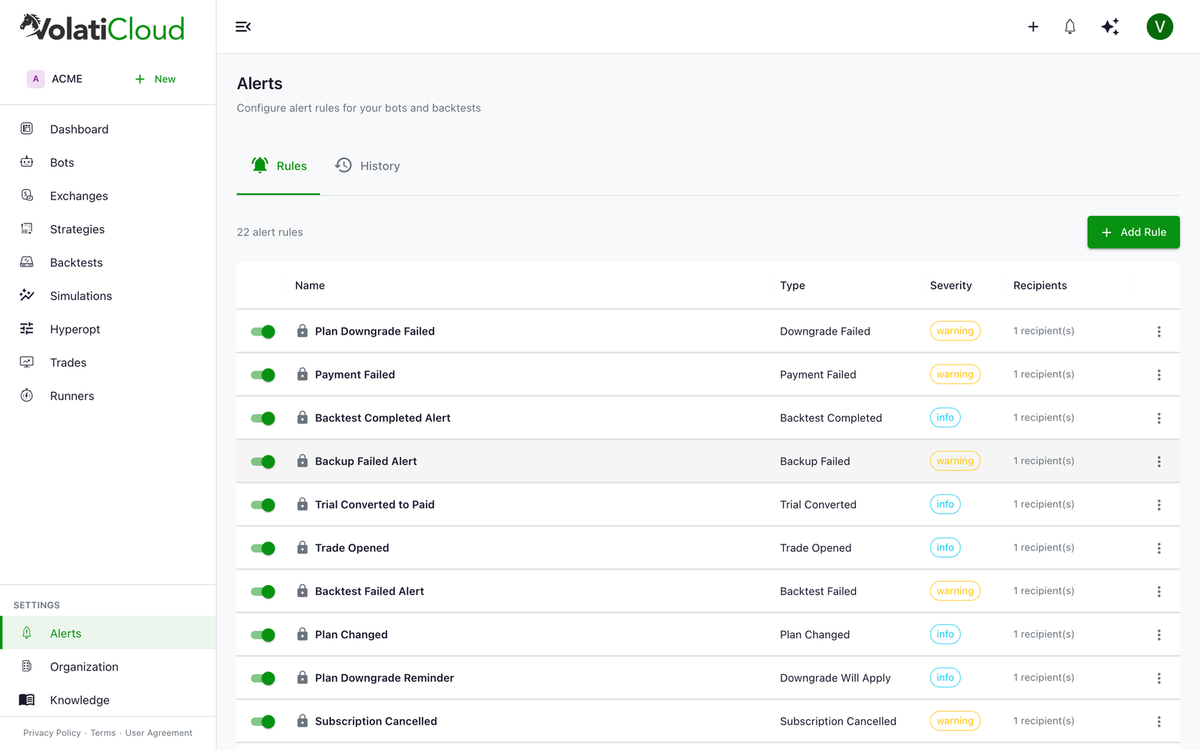
Creating an Alert Rule
Navigate to Alerts → Rules → Create Rule.
Basic Configuration
| Field | Description |
|---|---|
| Name | A descriptive name for the rule |
| Alert Type | The type of event to monitor |
| Resource | Which bot/backtest to monitor (or all resources) |
| Severity | Critical, Warning, or Info |
| Enabled | Whether the rule is active |
Alert Type Configuration
Each alert type has specific configuration options.
Bot Status Change
Triggers when a bot transitions to a specific status.
Alert when bot status becomes: running | stopped | error | starting | stopping
Example: alert when any bot enters error state.
Trade Closed
Triggers when a trade closes on the monitored bot.
Alert when any trade closes
Large Profit / Loss
Triggers when a trade closes with profit above a profit threshold, or a loss above a loss threshold.
Profit threshold: 10% (alert when profit exceeds this)
Loss threshold:    5% (alert when loss exceeds this)
Both thresholds are optional — set only the one you want to monitor.
Drawdown Threshold
Triggers when the bot's running max drawdown exceeds the configured percentage.
Alert when max drawdown > 15%
This is one of the most useful risk-management alerts — see the risk management and position sizing post for how to pick a threshold appropriate to your strategy.
Daily Loss Limit
Triggers when the bot's total loss in a single day exceeds the threshold.
Alert when daily loss > 5%
Backtest Completed
Triggers when a backtest finishes running.
Alert when backtest completes (success or failure)
Billing and Subscription Alert Rules
These alert types monitor subscription and billing events:
| Alert Type | Trigger |
|---|---|
| Trial Started | Free trial begins |
| Trial Ending Soon | Trial expires in 3 days |
| Trial Converted | Trial converts to paid subscription |
| Trial Expired | Trial expires without converting |
| Plan Changed | Subscription plan upgraded or downgraded |
| Payment Succeeded | Subscription payment processed |
| Payment Failed | Payment attempt fails |
| Low Credit Balance | Credit balance drops below threshold |
| Subscription Cancelled | Subscription is cancelled |
| Organization Suspended | Organization suspended (billing issue) |
| Organization Reactivated | Suspended organization restored |
Delivery Configuration
| Field | Description |
|---|---|
| Recipients | Who to notify (email, users, or roles) |
| Cooldown (minutes) | Minimum time between alerts for the same rule |
Cooldown prevents alert storms. With a 60-minute cooldown, a bot that errors repeatedly will only generate one alert per hour — the rest are suppressed.
Recipient Types
Alert rules support three recipient types:
| Type | Description | Example |
|---|---|---|
| Direct email address | [email protected] | |
| User | Specific organization member | Select from user dropdown |
| Role | All members with a specific role | admin — all org admins receive the alert |
You can mix recipient types in a single rule (e.g., the admin role plus a specific ops email).
Role-based recipients are resolved at delivery time — when a new user joins the admin role, they automatically receive alerts from rules targeting that role. No rule update needed. This pairs well with the role-based access control covered in the team management post.
Resource Scope
| Scope | Description |
|---|---|
| Organization-level | Alert applies to all resources in the organization |
| Specific bot | Alert applies only to a specific bot |
| Specific backtest | Alert applies only to a specific backtest |
Organization Default Rules
Every organization starts with pre-configured system alert rules, created when the org is set up — not per bot. You can edit delivery settings (recipients, enabled/disabled flag, cooldown) but not the core conditions. By default, all system rules notify the admin role.
| Rule | Severity | Delivery |
|---|---|---|
| Bot Status Change | Info | Immediate |
| Connection Issue Alert | Critical | Immediate |
| Backtest Completed Alert | Info | Immediate |
| Backtest Failed Alert | Warning | Immediate |
| Backup Failed Alert | Warning | Immediate |
| Trade Opened | Info | Batched |
| Trade Closed | Info | Batched |
| Organization Suspended | Critical | Immediate |
| Low Credit Balance | Warning | Immediate (24h cooldown) |
| Payment Failed | Warning | Immediate |
| Payment Succeeded | Info | Immediate |
| Subscription Cancelled | Warning | Immediate |
| Trial Started | Info | Immediate |
| Trial Ending Soon | Warning | Immediate |
| Trial Converted to Paid | Info | Immediate |
| Trial Expired | Warning | Immediate |
| Plan Changed | Info | Immediate |
| Organization Reactivated | Info | Immediate |
You can also create additional custom rules on top of these defaults.
Testing an Alert Rule
To verify your alert rule is working before relying on it in production:
- Open the alert rule
- Click Test Alert
- A test notification is sent immediately to all configured recipients
This confirms email delivery is working without waiting for an actual triggering event. Always test new rules — typos in recipient fields or spam-folder routing are common first-time issues.
Alert Event History
Every triggered alert creates an alert event in the audit log:
| Field | Description |
|---|---|
| Status | sent, suppressed, failed, pending, recorded |
| Triggered At | When the event occurred |
| Message | Details about what triggered the alert |
| Rule | Which alert rule triggered |
Status Values
| Status | Meaning |
|---|---|
sent | Alert was delivered via email |
recorded | In-app only — alert was logged for in-app display but no email was sent |
suppressed | Alert was rate limited or silenced (rule disabled or within cooldown) |
failed | Delivery failed (check email config) |
pending | Alert is queued for delivery |
Email Format
Alert emails include:
- Subject:
[VolatiCloud] [Severity] Alert: Rule Name - Bot/Resource name — which resource triggered the alert
- Event details — what happened
- Timestamp — when it occurred
- Link — direct link to the resource in the dashboard
Best Practices for Alert Rules
- Always enable Critical alerts — bot errors should always send immediate notifications
- Use meaningful cooldowns — 60 minutes for status alerts; 5–15 minutes for trade alerts
- Don't over-alert — too many notifications leads to alert fatigue and ignored emails
- Test your rules — always click Test Alert after creating a rule
- Set thresholds carefully — a drawdown alert at 5% may fire too frequently; 15–20% is more actionable
- Use role-based recipients for teams — see the team management post for the role model
Managing Alert Rules
Enabling / Disabling a Rule
Toggle the rule's Enabled switch to pause or resume alerting without deleting the rule.
Marking Alerts as Read
From the notification drawer or the Alerts History page:
- Mark as Read — individual alerts
- Mark All as Read — clear all unread notifications
Related Guides
- Alerts Overview — introduction to the alerting system, severity model, and notification channels.
- Crypto Trading Bot Alerts — design philosophy, best practices, and recommended setups by use case.
- Bot Monitoring — real-time metrics and log streaming for running bots.
- Billing Overview — understand subscription plans and credit consumption.