Team Crypto Trading: Role-Based Access Without Sharing API Keys

The most common way trading teams break down: someone needs to add a new bot, so they hand over the Binance API key on Slack. Now three people have the key in their local config, two of them have rotated laptops since, nobody is sure which copy is current, and when the security review asks who has access to the trading account, the honest answer is "I don't know." Role-based access control fixes this at the infrastructure level — not by trusting people to be careful, but by removing the need to share credentials in the first place. VolatiCloud gives every team member their own login with explicit, scoped permissions.
The Crypto Trading Team Access Control Problem
When several people share trading infrastructure, the questions stack up fast:
- Who can start, stop, or force-exit bots?
- Can team members see exchange API keys (and should they)?
- Who can change billing and add seats?
- How do you give a new analyst read-only performance access without exposing live trading credentials?
- How do you offboard someone and have confidence they no longer have access?
Without proper role separation, you either share everything (insecure) or gate everyone out (operationally crippling). VolatiCloud's role-based access control gives you the third option: per-person scoped permissions enforced at the platform level, with a separate view-secrets scope that protects API keys even from organization admins by default.
Role-Based Trading Platform: Two Roles, Many Scopes
Every team member has one of two organization-level roles. Underneath each role sits a set of fine-grained permission scopes (see the organization overview for the full list).
Admin
Full operational control over the organization:
- Manage billing and subscription plans
- Invite, manage, and remove team members
- Change member roles
- Create, edit, and delete strategies, bots, exchanges, runners
- Start, stop, and force-exit any bot in the org
- Manage API clients for programmatic access
Viewer
Read-only access for analysts, compliance, and observers:
- View bot performance, equity curves, and metrics
- Review backtest and Monte Carlo simulation results
- See strategy configurations (without sensitive secrets)
- Cannot create, edit, or delete resources
- Cannot start, stop, or affect any bot
A viewer can monitor what the trading desk is doing without being able to accidentally stop a bot, expose credentials, or change billing.
Sensitive Data Protection With the view-secrets Scope
Even within a team, API keys stay protected. The view-secrets scope is independent of the basic view scope:
view— see resource info: name, status, performance metrics, configuration minus secretsview-secrets— see the encrypted credential fields: API keys, secrets, passphrases
The default is view only — even admins don't automatically see other people's exchange API keys. The owner of the exchange (or anyone explicitly granted view-secrets) can see the credentials; everyone else sees the bot configuration with the key fields redacted.
In practice, this means:
- Your CTO can review a bot's behavior without ever seeing your Binance API secret
- A new analyst can use shared infrastructure without accessing live trading credentials
- A contractor can run backtests against historical data without touching production keys
- Compliance can audit configuration without retrieving secrets
For exchange-side hardening on top of this, see the exchange API key security post.
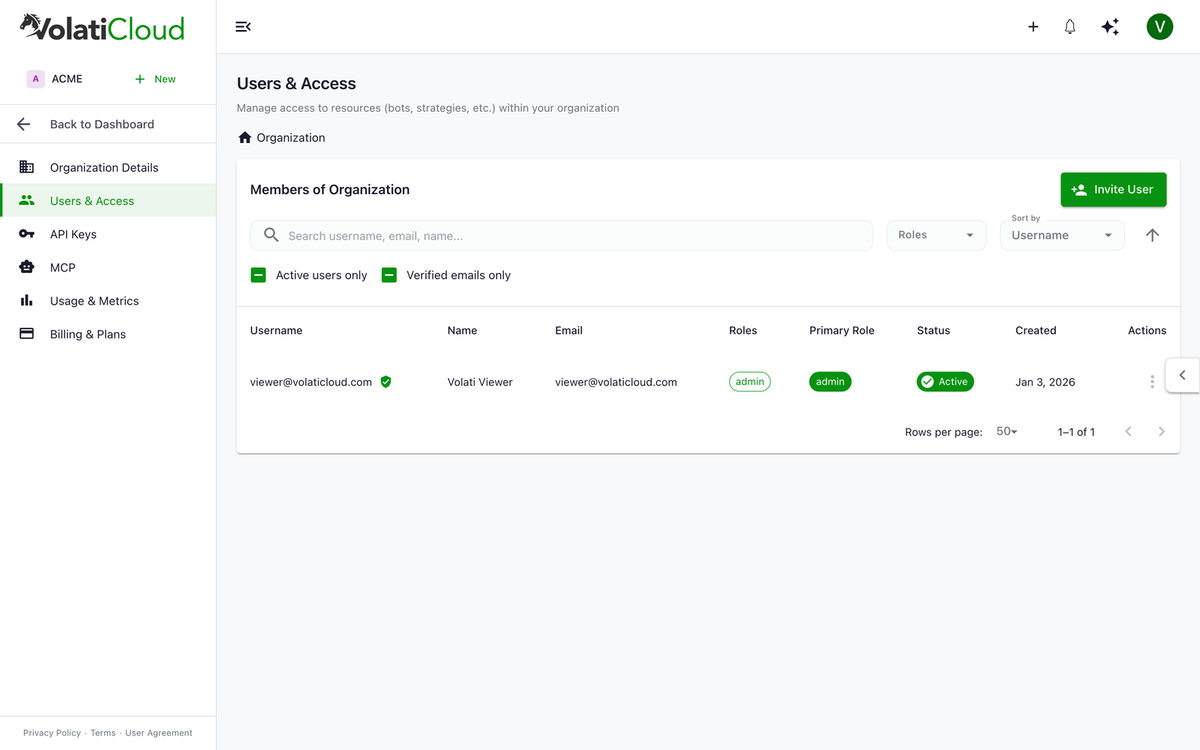
Inviting Team Members: Step-by-Step
- Open Organization → Users → Invite User in the console
- Enter the email address
- The user receives an invitation email with a one-time link
- They sign up (or sign into an existing account) and join the organization
- They land as a Viewer by default — you can promote to Admin from the user list
Invitations expire after 7 days. Cancel and resend if the invitee misses the window.
Shared Resources Within an Organization
Strategies, exchange connections, and runners can be marked public within the organization — visible and usable by all members, while still owned by a single user:
All three team members can create bots that use the shared exchange connection. Only Alice (the exchange owner) — or someone with view-secrets on that exchange — can see the underlying API key.
Real-World Crypto Trading Team Setups
Two-Person Trading Partnership
Alice owns the exchange connections and manages billing. Bob reviews strategies and monitors live performance. Alice is Admin; Bob is Viewer. Bob can see everything the bots are doing without being able to accidentally stop one or access Alice's API keys.
Client Management / Multi-Account Structure
For consultants or fund managers running multiple clients, create a separate organization per client to maintain hard isolation. Each org has its own billing, runners, and member list. A manager in Org 1 has zero visibility into Org 2.
- Org 1: Client A Trading — Manager (Admin), Assistant (Viewer)
- Org 2: Client B Trading — Manager (Admin), Junior Trader (Viewer)
Fund / Prop Desk Setup
Multiple traders need to create and manage their own bots; analysts and compliance need read-only visibility. Traders get Admin; analysts get Viewer; the trading desk lead retains exchange ownership and view-secrets over production credentials.
Audit Trail for Compliance and Postmortems
Every meaningful action in VolatiCloud creates an audit trail:
- Alert events with timestamps and severity
- Trade history linked to specific bots and strategy versions
- Backtest and hyperopt results linked to immutable strategy versions
- Bot lifecycle events (start, stop, force-exit) with the actor recorded
This gives you a clean answer when someone asks "who started this bot, when, and against which strategy version?" For funds and prop desks where audit trails matter for compliance, every trade is linkable back to a strategy version hash that cannot be silently rewritten.
Programmatic Access via API Clients
For teams that want CI/CD or automation on top of the platform, API clients provide programmatic access without sharing user accounts. Each API client gets its own client_id / client_secret pair, scoped permissions, and audit identity:
- Create a CI client that can deploy strategies and run backtests, but not manage billing
- Create a monitoring client with read-only access to bot metrics
- Rotate or revoke client credentials independently of user accounts
The API clients post covers setup and the OAuth client-credentials flow.
Permission Scopes Reference
The roles above are convenient bundles of underlying permission scopes. The most operationally relevant scopes:
| Scope | What it grants |
|---|---|
view | Read basic resource info (name, status, configuration without secrets) |
view-secrets | Read sensitive configuration fields (API keys, passphrases) |
edit | Modify a resource |
delete | Soft-delete a resource |
create-strategy | Create new strategies in the org |
create-bot | Create new bots in the org |
create-exchange | Create new exchange connections |
view-billing | Read billing data (admin only) |
manage-billing | Subscribe, change plan, deposit credits |
invite-user | Invite new members |
change-user-roles | Modify member roles |
You don't normally configure scopes individually — the Admin / Viewer roles bundle them — but understanding the underlying model helps when reasoning about edge cases. The full scope list lives in the organization overview.
Getting Started With Team Management
Team management requires the Enterprise plan, which you can activate in under a minute from the billing page.
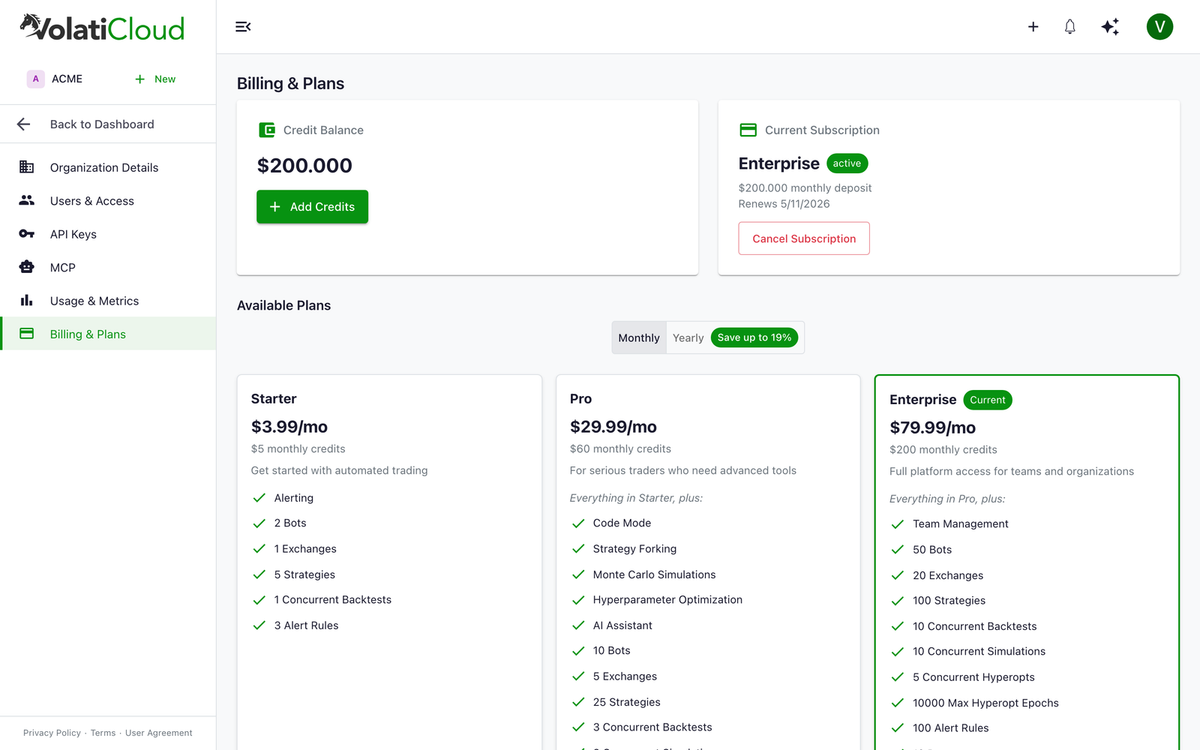
- Upgrade to the Enterprise plan from Organization → Billing
- Open Organization → Users
- Click Invite User and enter your team member's email
- Set their role based on responsibilities — start with Viewer and promote as needed
- (Optional) Configure alert rules with
adminrole-based recipients so all admins get critical alerts automatically
To add your first team member, upgrade to the Enterprise plan and open Organization → Users → Invite User. Open the console →
Related guides
- Organization Overview — Roles, scopes, resource ownership, and multi-org management.
- Team Management — Step-by-step guide to inviting users and assigning roles.
- Plans & Pricing — Which plans include team seats.