Supported Exchanges
VolatiCloud covers 14 cryptocurrency exchanges — every venue Freqtrade integrates with. All 14 work for market data, backtesting, hyperopt, and dry-run bots. Live trading clears a second, stricter bar: VolatiCloud stores an API key only when it can prove the key cannot withdraw, so live credentials are accepted on the venues it can verify.
This page is the per-exchange reference: which tier each venue is in, what to enable, where to find each exchange's API page, and the gotchas each venue brings (passphrases for Bitget, OKX and KuCoin, EVM wallets for Hyperliquid).
The catalog is the single source of truth in api/internal/exchange/catalog.go. Adding a new exchange is a one-line change in that file, and the dashboard's exchange picker, validation, and Freqtrade routing all read from it.
Coverage and live trading
Two tiers. The difference is credentials, not data.
| Tier | What you get | Venues |
|---|---|---|
| Coverage | Market data, backtesting, hyperopt, Monte Carlo, and dry-run (paper) bots | All 14 venues on this page |
| Live trading | Everything above, plus real orders placed with your API key | Binance, BingX, Bitget, Bybit, HTX, Kraken, KuCoin, OKX and MyOKX (EEA) |
Nothing in the coverage tier is a degraded version of the product. Market data needs no credentials at all, a backtest runs with dry-run forced on, and a dry-run bot needs no connected exchange — so you can build, backtest, optimize, and paper-trade a strategy on any of the 14 before you hand over a key anywhere.
Why a venue does not take live keys
VolatiCloud will not store an API key it cannot prove is withdrawal-disabled.
That proof is not a checkbox on our side. It is a per-venue prober: code that calls the exchange's own API-permission endpoint with your key and reads back what the key is actually allowed to do. If the exchange reports withdrawal capability, the key is rejected at submit. If the exchange publishes nothing that answers the question, there is no proof — and an unproven key does not get stored.
So the live-trading list is exactly the list of venues where that proof exists today, and it grows as each prober ships. It is a short list on purpose: every live key on VolatiCloud has been checked against the exchange itself, not taken on trust.
The rule in full: Security — API Keys.
Wherever an exchange on this page offers an IP allowlist, do not use it. Bots on VolatiCloud infrastructure have no fixed outbound address, so a key locked to an IP list will start failing authentication without warning — including while a bot is running with open positions.
The control that does protect the key is the withdrawal-disabled rule, which VolatiCloud enforces at connection time. See IP Allowlisting for the full explanation, and for what to do if your exchange requires an IP restriction.
Quick Reference Table
Every venue below is available for market data, backtesting, and dry-run bots. The Live keys column says whether it also accepts credentials for live trading.
| Exchange | Live keys | Spot | Futures | Margin | Passphrase | Notes |
|---|---|---|---|---|---|---|
| Binance | Accepted | Yes | Yes | Yes | — | Largest exchange by volume |
| Binance US | Research only | Yes | — | — | — | US-regulated subsidiary |
| BingX | Accepted | Yes | — | — | — | Spot and copy trading |
| Bitget | Accepted | Yes | Yes | — | Required | Strong futures liquidity |
| BitMart | Research only | Yes | — | — | — | Broad altcoin coverage |
| Bitvavo | Research only | Yes | — | — | — | Dutch DNB-regulated |
| Bybit | Accepted | Yes | Yes | — | — | Major derivatives venue |
| Gate.io | Research only | Yes | Yes | — | — | Extensive altcoin and futures markets |
| HTX | Accepted | Yes | — | — | — | Formerly Huobi |
| Hyperliquid | Research only | Yes | Yes | — | — (EVM wallet) | On-chain perpetuals DEX |
| Kraken | Accepted | Yes | Yes | — | — | US-based, long-standing |
| KuCoin | Accepted | Yes | — | — | Required | Early altcoin listings |
| OKX | Accepted | Yes | Yes | — | Required | Global, deep order books |
| MyOKX (EEA) | Accepted | Yes | Yes | — | Required | OKX endpoint for EEA users |
Using the Add Exchange Wizard
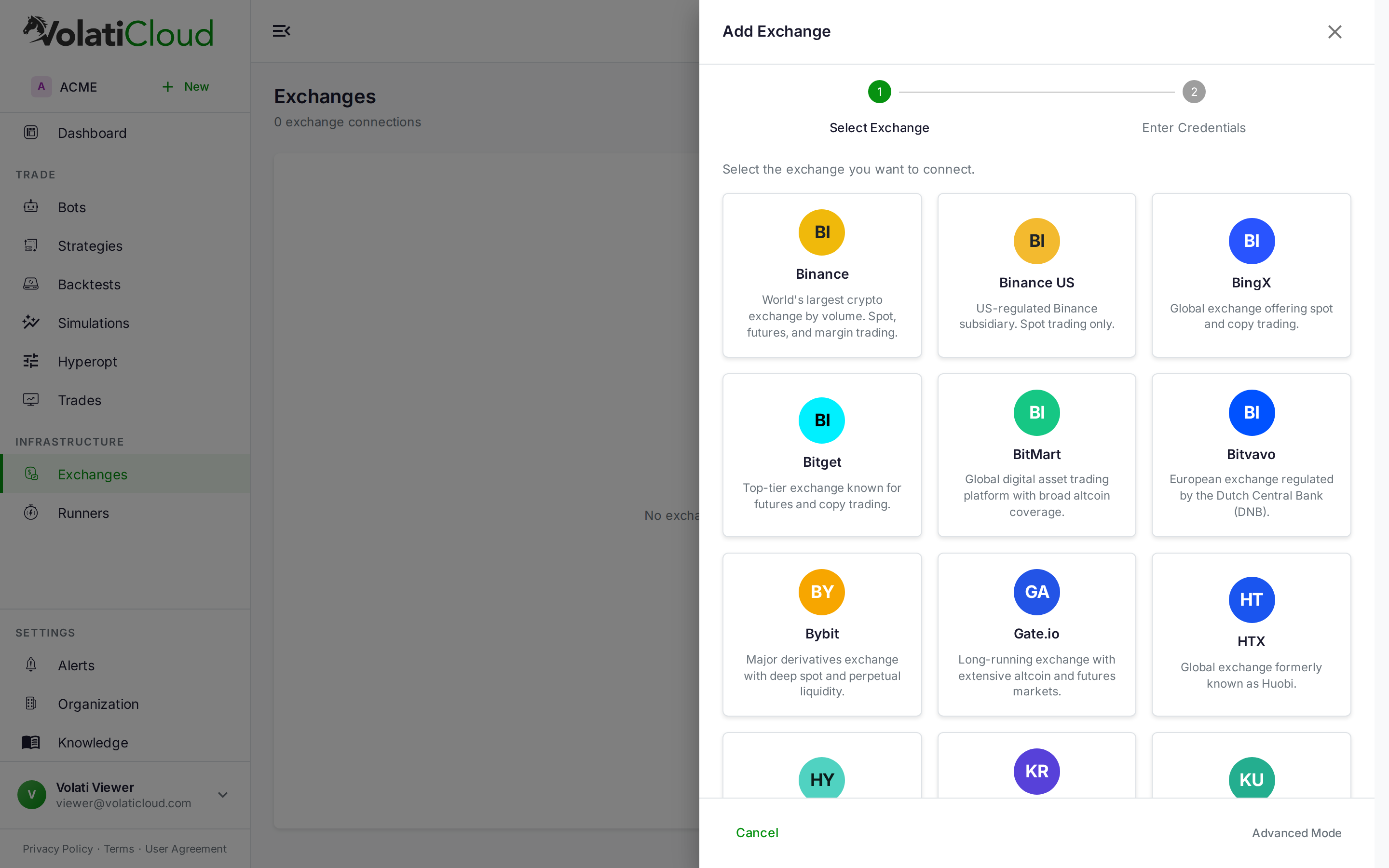
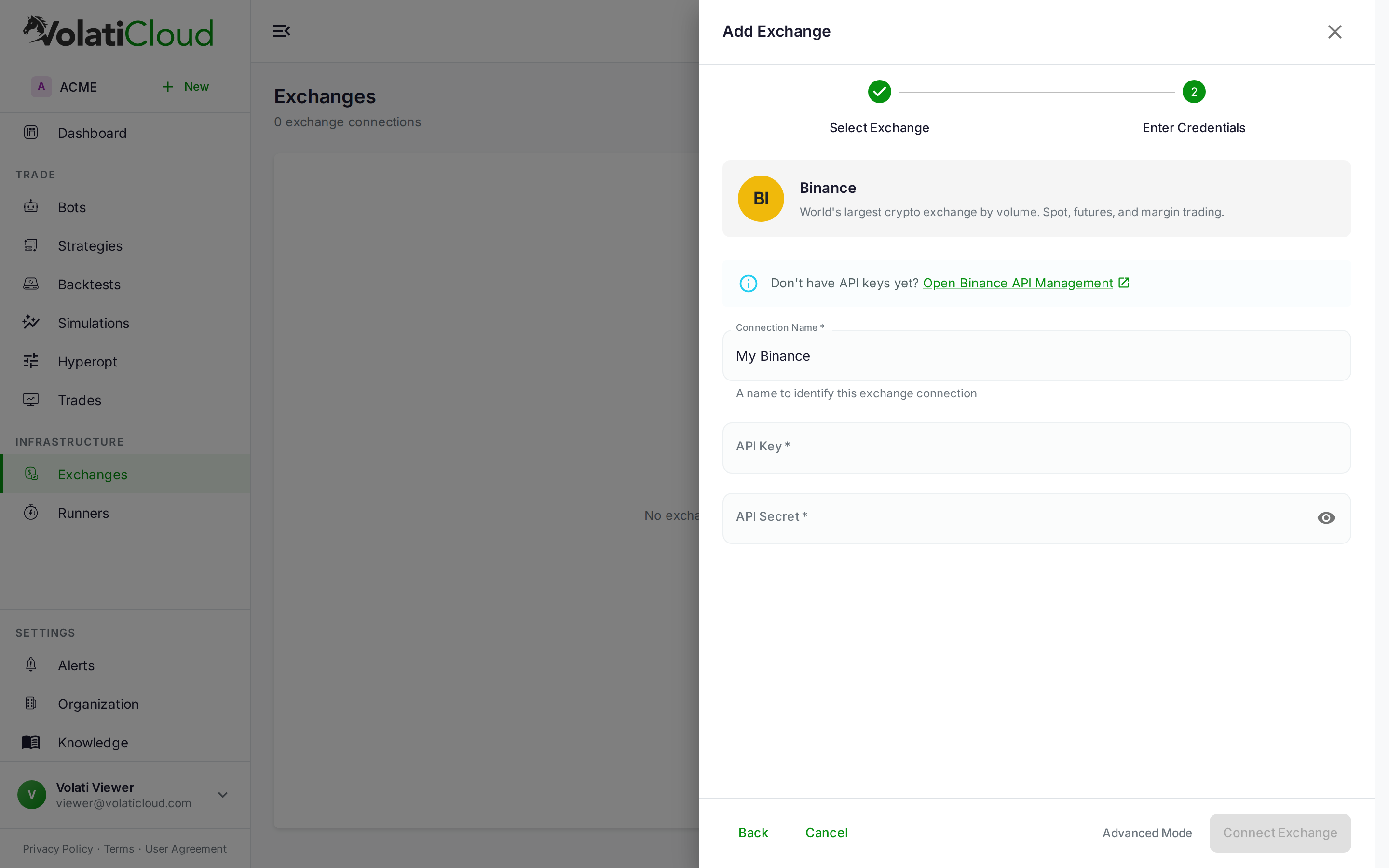
The dashboard's two-step wizard is how you connect a live key. Step 1 is a visual grid of cards; step 2 is a credentials form scoped to the exchange you picked. Exchanges that need passphrases (Bitget, KuCoin, OKX, MyOKX) get an extra field automatically.
The grid shows the whole catalog, and the verification happens at submit: pick a research venue and the credentials are refused rather than stored, because VolatiCloud cannot prove that key is withdrawal-disabled. You do not need a connection there anyway — market data, backtests, and dry-run bots on those venues work without one.
After picking an exchange, the wizard advances to the credentials form for that venue.
For the wizard's general flow, security model, and Advanced Mode escape hatch, see Exchanges Overview.
Binance
Live keys accepted. VolatiCloud verifies the key is withdrawal-disabled before storing it.
Global Binance with full spot, margin, and futures support.
Creating API keys
- Sign in to binance.com
- Open Account → API Management
- Click Create API → System Generated
- Enter a label (e.g., "VolatiCloud Bot")
- Complete 2FA verification
- Under API Restrictions, enable:
- Enable Reading
- Enable Spot & Margin Trading
- Enable Futures (only if running futures bots)
- Do NOT enable Withdrawals — VolatiCloud will reject the key
Recommended
- Leave IP access restrictions off — VolatiCloud has no fixed egress IPs to allowlist (why)
- Use a dedicated sub-account for bot trading
Binance US
Research venue. Market data, backtesting, and dry-run bots all work here. Live keys are not stored — there is no withdrawal-disabled proof for this venue (why). The setup steps below stay accurate for the day there is.
Binance US is regulated separately. Spot trading only — no futures, no margin.
- Sign in to binance.us
- Open Account → API Management
- Follow the same steps as Binance above
- Note: Futures and margin are not available on Binance US
BingX
Live keys accepted. VolatiCloud verifies the key is withdrawal-disabled before storing it.
Spot and copy trading.
- Sign in to bingx.com
- Open Account → API Management
- Click Create API
- Enable Read and Trade permissions
- Save the API key and secret
Bitget
Live keys accepted. VolatiCloud verifies the key is withdrawal-disabled before storing it.
Strong futures liquidity in addition to spot.
- Sign in to bitget.com
- Open Account → API Management → Create API
- Set a label and select Read-Write permissions
- Enable:
- Spot Trading
- Futures Trading (only if running futures bots)
- Leave IP restriction unset — see the note at the top of this page
BitMart
Research venue. Market data, backtesting, and dry-run bots all work here. Live keys are not stored — there is no withdrawal-disabled proof for this venue (why). The setup steps below stay accurate for the day there is.
- Sign in to bitmart.com
- Open Account → API Management → Create API Key
- Enable Trade permission
- Save the API key, secret, and memo (BitMart-specific extra field)
Bitvavo
Research venue. Market data, backtesting, and dry-run bots all work here. Live keys are not stored — there is no withdrawal-disabled proof for this venue (why). The setup steps below stay accurate for the day there is.
European, DNB-regulated. Spot trading only.
- Sign in to bitvavo.com
- Open Settings → API
- Click Create new key
- Enable View information and Trade
- Save the API key and secret
Bybit
Live keys accepted. VolatiCloud verifies the key is withdrawal-disabled before storing it.
Major derivatives exchange with deep liquidity in spot and perpetuals.
- Sign in to bybit.com
- Open Account → API → Create New Key
- Select System-generated API Keys
- Set permissions:
- Read-Write
- Unified Trading
- Leave IP restriction unset — see the note at the top of this page
Gate.io
Research venue. Market data, backtesting, and dry-run bots all work here. Live keys are not stored — there is no withdrawal-disabled proof for this venue (why). The setup steps below stay accurate for the day there is.
Long-running exchange with extensive altcoin and futures markets.
- Sign in to gate.io
- Open Profile → API Management → Create API Key
- Enable Spot Trade and Perpetual Futures as needed
- Leave the IP whitelist empty — see the note at the top of this page
HTX
Live keys accepted. VolatiCloud verifies the key is withdrawal-disabled before storing it.
Formerly Huobi. Spot trading on VolatiCloud.
- Sign in to htx.com
- Open API Management
- Click Create
- Enable Read and Trade
- Save the API key and secret
Hyperliquid
Research venue. Market data, backtesting, and dry-run bots all work here. Live keys are not stored — there is no withdrawal-disabled proof for this venue (why). The setup steps below stay accurate for the day there is.
On-chain perpetuals DEX. No traditional API key — Hyperliquid uses an EVM wallet for authentication. You generate an "API wallet" in your Hyperliquid account that VolatiCloud uses to sign trades on your behalf.
- See the Hyperliquid docs for the API wallet setup procedure
- The API wallet's private key takes the place of the usual API key/secret pair
- There is no API-key permission model to inspect. An agent wallet can call
vaultTransfer, so withdrawal capability cannot be excluded — which is precisely why VolatiCloud will not hold one for live trading, and why Hyperliquid is a research venue here
Kraken
Live keys accepted. VolatiCloud verifies the key is withdrawal-disabled before storing it.
US-based, long-standing exchange with strong security history.
- Sign in to kraken.com
- Open Security → API
- Click Generate new key
- Set permissions:
- Query Funds
- Query Open Orders & Trades
- Query Closed Orders & Trades
- Create & Modify Orders
- Cancel/Close Orders
- Set key expiry if desired
KuCoin
Live keys accepted. VolatiCloud verifies the key is withdrawal-disabled before storing it.
KuCoin requires a passphrase in addition to API key and secret.
- Sign in to kucoin.com
- Open Account → API Management → Create API
- Enter a name and set a passphrase (you'll enter this in VolatiCloud too)
- Select permissions:
- General
- Trade
- Futures (if needed)
- Complete 2FA
KuCoin requires a passphrase alongside the API key and secret. The wizard prompts for it automatically when you select KuCoin.
OKX
Live keys accepted. VolatiCloud verifies the key is withdrawal-disabled before storing it.
OKX requires a passphrase in addition to API key and secret.
- Sign in to okx.com
- Open Account → API → Create API Key
- Set a passphrase (you'll enter this in VolatiCloud too)
- Enable:
- Read
- Trade
- Save your API Key, Secret Key, and Passphrase
OKX requires a passphrase alongside the API key and secret. Make sure you save it during creation — OKX will not show it again.
MyOKX (EEA)
Live keys accepted. VolatiCloud verifies the key is withdrawal-disabled before storing it.
MyOKX is the European Economic Area endpoint for OKX, served from my.okx.com. EEA residents must use this entry instead of OKX so VolatiCloud routes trading through the right regional endpoint. Setup is identical to OKX — only the login domain differs.
- Sign in to my.okx.com
- Follow the same steps as the OKX section above
- Use the MyOKX (EEA) card in the Add Exchange wizard
Testing Your Connection
After saving an exchange in VolatiCloud, the fastest way to verify it works end-to-end:
- Create a Dry Run bot using the new exchange connection
- Start the bot
- Confirm it reaches the running state and starts fetching market data
If the bot fails to start, check the failure reason in the bot's status panel. Common causes:
- API key or secret typo
- A required permission was not enabled (Trade, Futures, etc.)
- An IP restriction is set on the key. VolatiCloud's outbound address is not fixed and cannot be allowlisted — remove the restriction (why)
- The exchange requires extra verification (KYC, IP confirmation email)
Getting Help
If you're stuck connecting an exchange, contact support via console.volaticloud.com. Include the exchange, the connection name, and the failure message — never include the API key or secret.
Related guides
- Exchanges Overview — How the wizard works, encryption, withdrawal-disabled rule, sharing.
- Creating a Bot — Attach an exchange connection to a bot and start trading.
- Security — API Keys — Withdrawal-disabled rule, permission scoping, rotation cadence.
- Billing — Plans & Pricing — Plan limits on number of exchange connections.