Cross-Organization Strategy Forking: Share Trading Logic Across Teams

Cross-organization forking has been removed from VolatiCloud. A fork now always lands in the organization you are working in: the Fork Strategy drawer shows that organization without a selector, and you choose which of its workspaces receives the fork. The Organization dropdown, the cross-organization scenarios and the target-organization permission checks described in this post no longer apply. For the current flow, see the Strategy Forking documentation.
You've tuned a BTC/USDT mean-reversion strategy that consistently performs well in your main organization. Now you want to run it for a second account on a different exchange — but under a separate organization so billing, API keys, and team members stay isolated. Without cross-org forking, your only option is to copy the strategy code by hand, which immediately creates two diverging copies you'll have to maintain forever. VolatiCloud's cross-org strategy forking solves this by letting you fork any version of a strategy directly into a different organization or workspace you belong to, in one click, with no manual code copying.
Why Organization Boundaries Matter — and Where They Create Friction
VolatiCloud's organization model is intentional: different organizations have separate billing, separate team members, separate API key stores, and separate permission scopes. A hedge fund running strategies for three clients wants them in three organizations so no client can see another's positions, API keys, or backtest results.
That separation is valuable — until you want to share logic across those boundaries.
A trading strategy is intellectual property you develop once and iterate on. When you need the same core logic in two organizations, copy-pasting code creates a maintenance problem immediately:
- Bug fixes have to be applied twice. Fix a logic error in org A; org B still runs the buggy version until you remember to copy the fix.
- Optimization discoveries get siloed. A hyperopt run in org A produces a better parameter set. Org B doesn't benefit automatically.
- Version histories diverge instantly. The two copies have no shared ancestry, so you can't diff them or trace when they last matched.
Cross-org forking removes this friction by creating a clean starting point in the target organization — a full copy at the version you chose — while maintaining independent version histories from that point forward.
How Cross-Org Forking Works
Forking itself is not new to VolatiCloud — the platform has always let you fork a strategy version into the same organization as a new strategy (covered in detail in Strategy Versioning and Forking). What changed in v2.3.0 is the target selection in the fork dialog.
When you open the fork dialog from any strategy's Version History, you now see two new selectors:
- Organization — any organization you're a member of (defaults to your current org)
- Workspace — any workspace within the selected organization
Both default to your current location, so existing same-org fork workflows are unchanged. But switching the organization dropdown lets you fork the strategy into an entirely separate org — subject to two permission checks:
-
You need
create-strategyscope on the target organization. If you're a member of org B with the "Developer" role but not "Admin", you might not have this scope. The dialog will still open, but the Submit button will be gated. -
The target organization needs the
strategy_forkingsubscription feature. If the target org is on the Starter plan and strategy forking is a Pro feature, the dialog shows a warning and blocks submission. The source organization doesn't need to have this feature — only the target.
These checks happen in the dialog rather than on the button itself, which means you can always open the fork dialog to see your options, even if your current organization doesn't have the feature. This is important: if you're in a read-only role in org A but an admin in org B, you can fork from A into B without org A needing to be on a paid plan.
Three Scenarios Where This Changes Your Workflow
Scenario 1: Multi-Account Trading Firms
A prop trading firm or agency running strategies for multiple clients needs strict data separation between clients. Each client lives in a separate organization. When the quant team develops a new trend-following strategy in the "Research" organization, they fork it into each client organization under that client's workspace, then configure exchange connections and bot parameters independently.
The strategy code is identical at the fork point. From that moment, each client's version is independent — the research team can keep iterating on the Research org's copy without affecting live client deployments.
Scenario 2: Spot vs Futures Separation
Many traders run separate organizations for spot and perpetuals trading — different risk profiles, different position sizing, different counterparties. A strategy tuned for spot might need a different stoploss and timeframe configuration for futures. Cross-org forking lets you take the spot strategy, fork it into the futures org, and adjust the configuration parameters there without affecting the spot version.
Scenario 3: Development → Staging → Production Pipeline
More advanced setups use organizations as deployment stages. A "Dev" org for development with paper trading, a "Prod" org for live capital. When a strategy passes backtesting and paper trading thresholds, you fork the pinned version from Dev into Prod. The Prod org never runs code that hasn't been validated — it receives a clean, traceable fork at a specific version.
Step-by-Step: Forking a Strategy to Another Organization
The workflow is entirely driven from the Strategy Studio without any org switching.
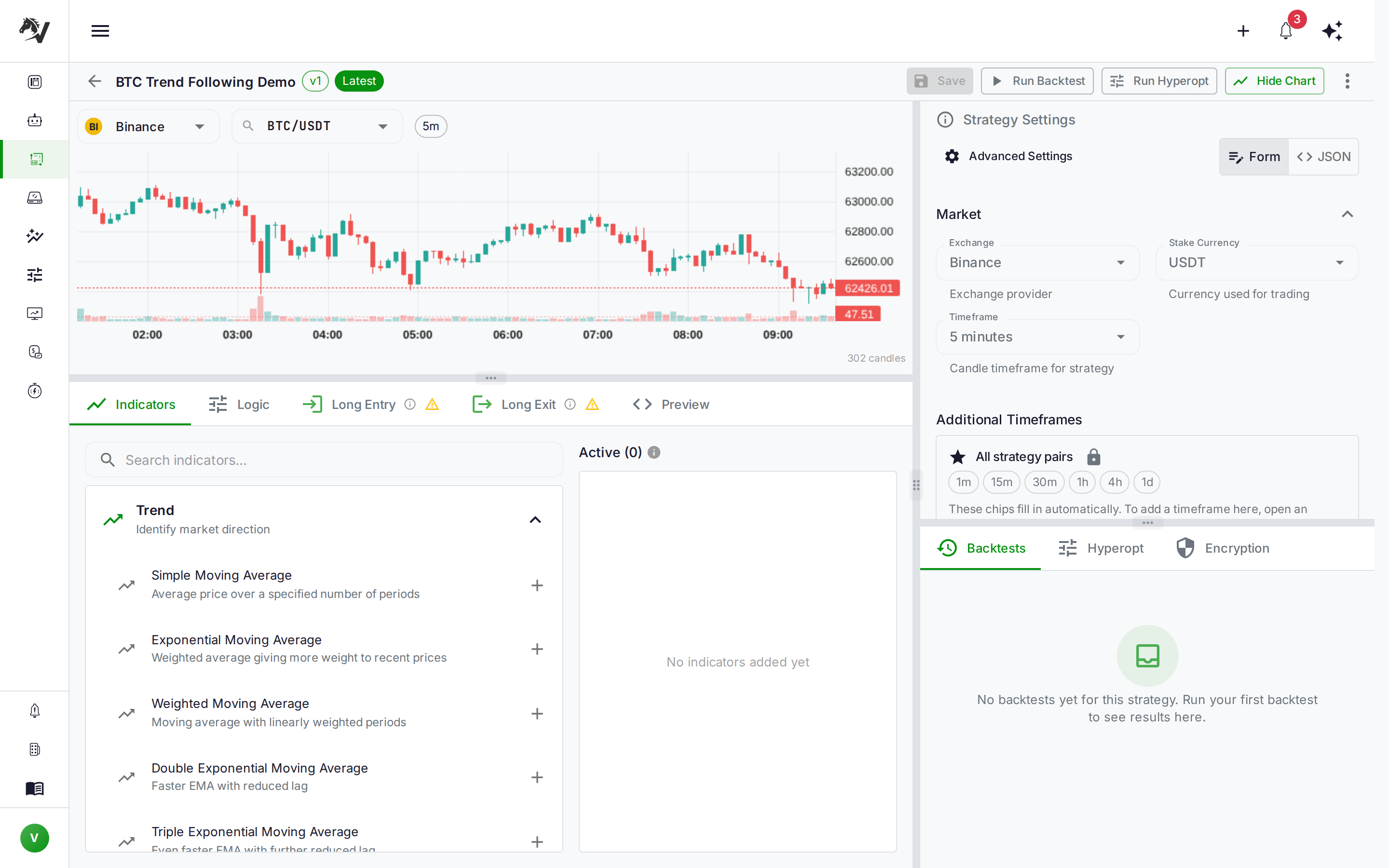
Step 1: Open the strategy in Studio. Navigate to your Strategies list and click the strategy you want to fork. This opens the Strategy Detail view with the full Studio layout.
Step 2: Expand Version History. The right side of the Studio shows a compact version history panel. Click the expand icon to open the full Version History drawer, which shows all saved versions with metadata (date, description, whether a bot is pinned to that version).
Step 3: Choose the version to fork. Each row in the Version History has a Fork button. You can fork any version — the current latest or an older one. Click the fork button next to the version you want.
Step 4: Configure the fork target. The Fork Strategy drawer slides in. Fill in a name and optional description for the forked strategy, then use the Organization dropdown to select your target org and the Workspace dropdown to choose the workspace within it.
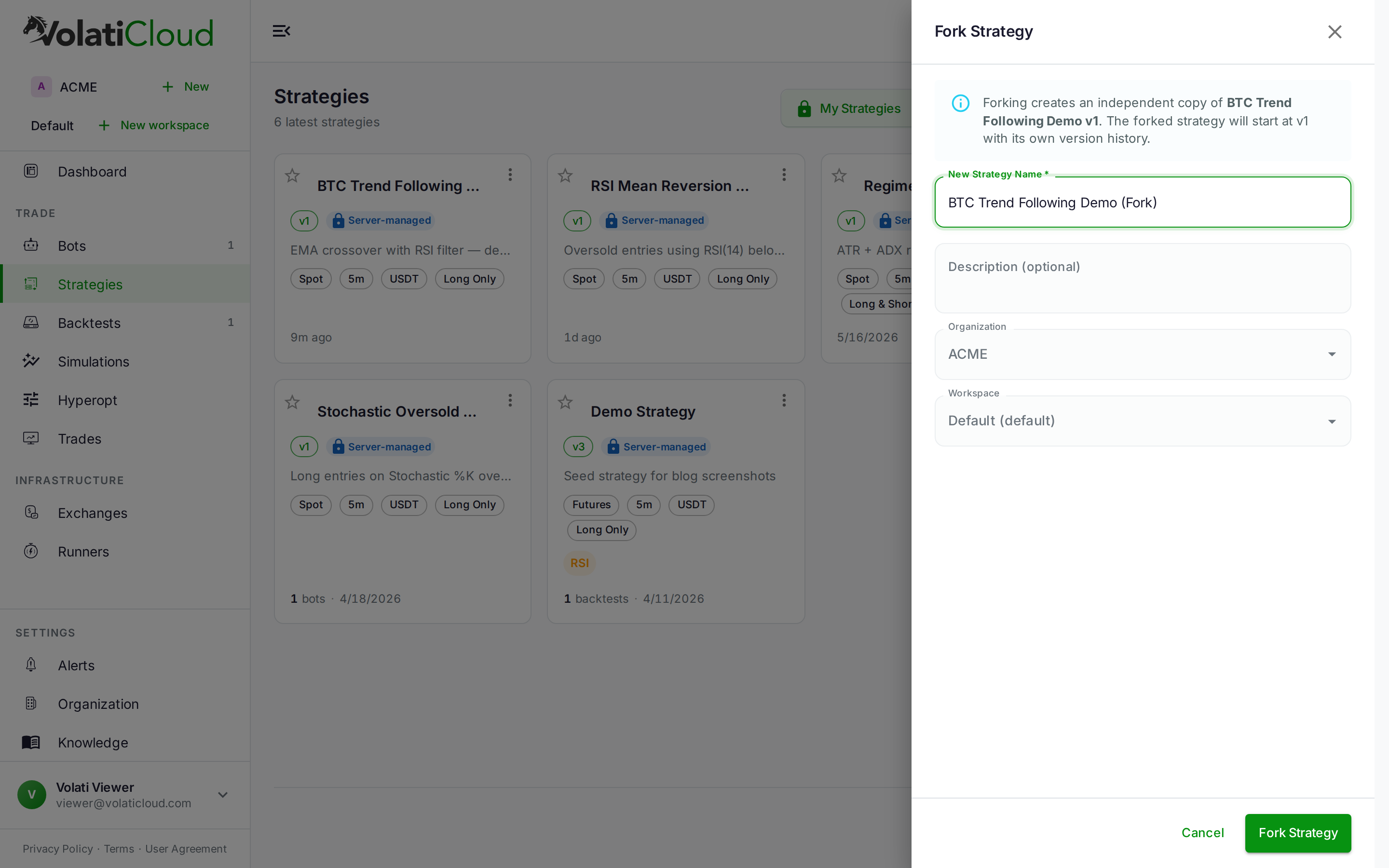
Tip: The fork will inherit the strategy's full logic and configuration but will have an independent version history starting from version 1. Backtests and live bots are not copied — those are always environment-specific.
Step 5: Submit. Click Fork Strategy. The new strategy appears in the target organization's strategy list immediately.
What the Fork Preserves — and What It Doesn't
Understanding exactly what transfers is important before you rely on this workflow.
| Attribute | Copied to fork? |
|---|---|
| Strategy code (Python / UI Builder logic) | ✅ Yes |
| Indicator configuration | ✅ Yes |
| Trading configuration (timeframe, stoploss, etc.) | ✅ Yes |
| Strategy name and description | ✅ Yes (editable during fork) |
| Version history | ❌ No — fork starts at version 1 |
| Backtest results | ❌ No — run fresh in the target org |
| Associated bots | ❌ No — create new bots in target org |
| Exchange connections | ❌ No — target org manages its own exchanges |
| Hyperopt results | ❌ No |
The clean break on version history and backtests is intentional. A backtest result in the source org used that org's market data configuration and runner environment. Running the same backtest in the target org might produce slightly different numbers depending on configuration — it's more accurate to start fresh than to import numbers that might not be reproducible.
Permission Mechanics: Who Can Fork Where
The permission model has two independent checks that happen in parallel:
Source side: You need view scope on the source strategy. If the strategy is private and you don't own it, you can't fork it. If it's public (strategy visibility set to public), any authenticated user can fork it, regardless of which org it lives in.
Target side: You need create-strategy scope on the target organization. This is the same scope required to create any new strategy in that org. Your role in the source organization is irrelevant for this check.
Subscription check: The target organization needs the strategy_forking subscription feature. This is checked at submission time. If the target org's plan doesn't include it, the fork dialog displays a warning inline — you'll see it before you hit Submit rather than getting a post-submit error.
This design means the feature is genuinely useful for cross-org collaboration even when organizations have different subscription tiers. A Starter-plan org can receive a fork from a Pro org if the Starter org upgrades. Until then, the Pro user can still use the dialog, see the warning, and understand what's needed.
VolatiCloud's Role in Multi-Org Strategy Management
Beyond forking, VolatiCloud structures multi-org workflows through a few complementary features that work together:
Organization-scoped visibility. Strategies can be made public within VolatiCloud (the setStrategyVisibility mutation), meaning any authenticated user on the platform can view and fork them. This enables a "strategy marketplace" pattern where you publish a strategy from your research org and let team members fork it into their own orgs.
Immutable versioning. Because every save creates a new version, the fork always points to a specific, reproducible snapshot. If you fork version 7 of a strategy, what ends up in the target org is exactly version 7 — not "whatever the code was at approximately that time."
Independent backtest environments. Each organization's runners and exchange connections are isolated. A forked strategy's backtests in the target org run against that org's market data and exchange configuration, which means they reflect the actual environment the live bot will run in.
These three features together — forking, immutability, and org-level isolation — give multi-team operations the governance model they need without forcing everyone into a single shared org.
Getting Started
Cross-organization forking is no longer available (see the update at the top of this post). Within one organization the idea still works: fork a known-good strategy into another workspace and run a backtest there before you build on it.
To fork a strategy now, open it in the VolatiCloud console, expand Version History, and click the Fork button next to any version. The drawer shows the organization you're working in, and you choose which of its workspaces the fork lands in.
For more on the underlying versioning model and same-org forking workflows, see Strategy Versioning and Forking and the Strategy Forking documentation.