Workspaces: Organize Your Bots and Strategies within an Organization

You reach over to stop last night's paper-test bot, click the one at the top of the list, and realize a beat too late that it was your live Binance bot holding 0.4 BTC. Nothing broke this time. But a single flat list of every strategy, bot, exchange, and runner you own is exactly the setup where that mistake eventually costs real money. As your portfolio grows — multiple assets, separate environments for testing and live trading, different risk profiles for different market conditions — that flat list stops being convenient and becomes a liability. Workspaces are VolatiCloud's answer to that problem.
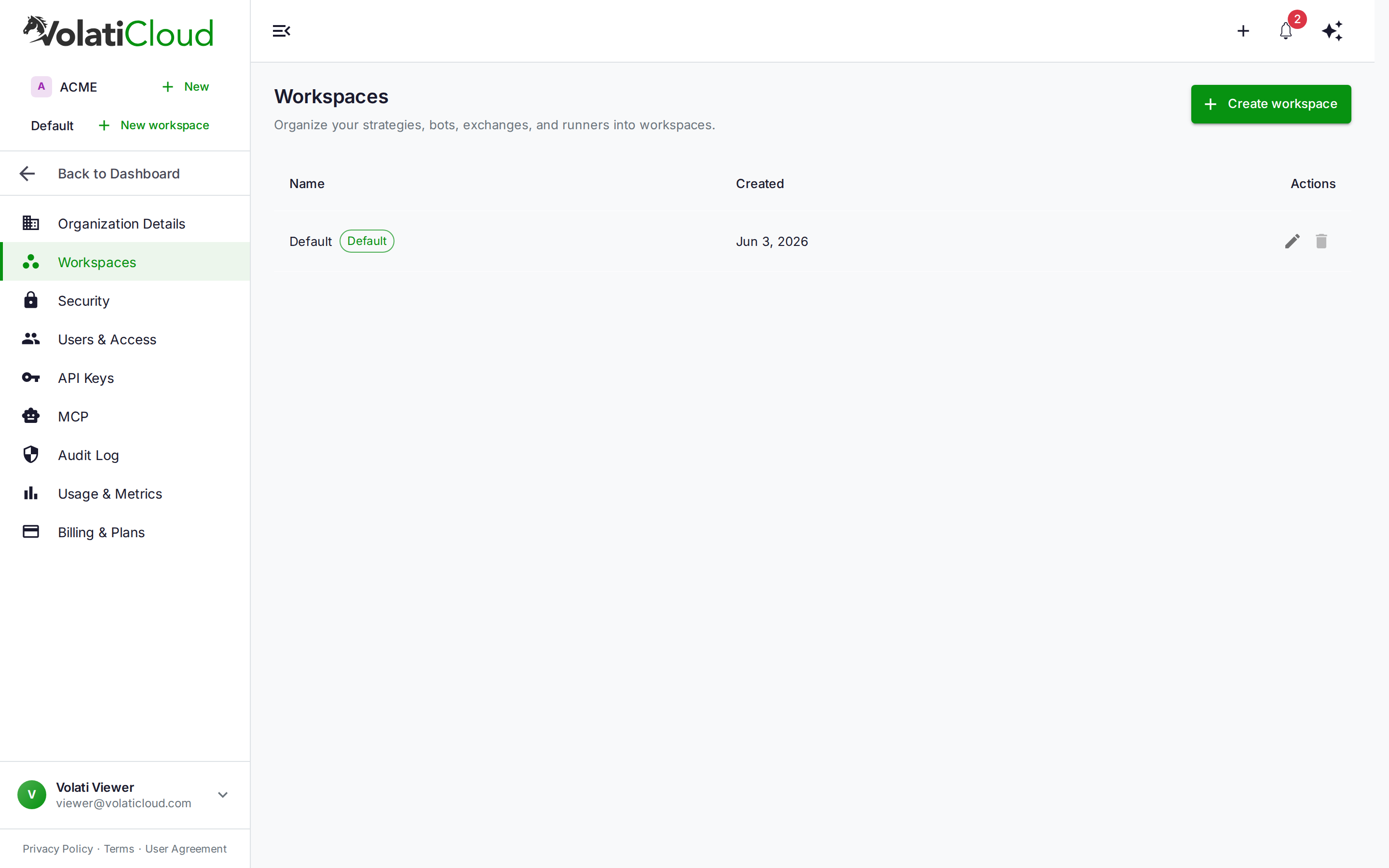
Workspaces are named containers within an organization that group your strategies, bots, exchange connections, and runners. You can create as many as you need, switch between them from the sidebar, and keep resources in each workspace completely separate from the others — same organization, same billing, but different operational contexts.
What a Workspace Contains
Every resource in VolatiCloud belongs to exactly one workspace:
| Resource | Workspace-scoped |
|---|---|
| Strategies | Yes |
| Bots | Yes |
| Exchange connections | Yes |
| Bot runners (Docker / Kubernetes) | Yes |
When you switch the active workspace from the sidebar, the entire dashboard — strategy lists, bot lists, exchange lists, runner lists — rebinds to show only that workspace's resources. Resources in other workspaces don't disappear; they just aren't shown until you switch back.
This means you can run a "Production" workspace with live bots on Binance alongside a "Staging" workspace running paper bots on the same exchange, and the two sets of resources never mix in your UI.
The Default Workspace
Every organization starts with a Default workspace. If you were already using VolatiCloud before workspaces launched, all your existing resources were automatically assigned to the Default workspace — nothing changed from your perspective.
The Default workspace cannot be deleted. It acts as the fallback container for resources that haven't been explicitly assigned elsewhere. You can rename it if you want (e.g. rename it "Production" to match your mental model), but you can't remove it entirely.
Creating a Workspace
Open Organization → Workspaces from the sidebar, then click Create workspace. The creation form has a single field: the workspace name.
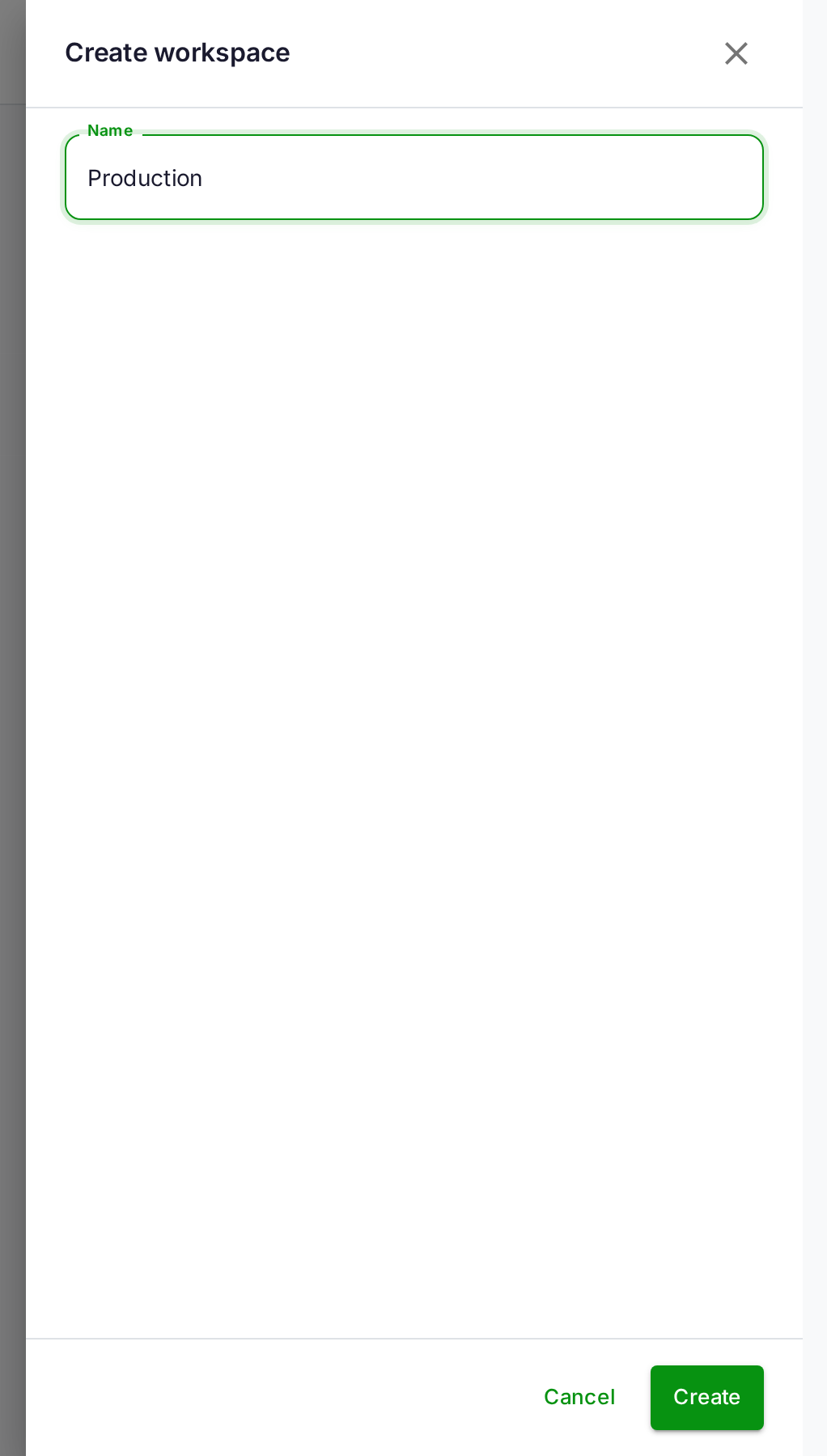
Name your workspace something that describes its purpose. Common choices:
- Production / Staging — separate live trading from paper trading
- BTC-only / Alt-season — separate asset classes or market regimes
- Trend strategies / Mean reversion — separate strategy types
- Alice / Bob — separate traders within the same organization
Once created, the workspace appears in the switcher in the sidebar and in the Workspaces management table. You can rename it at any time. You can delete it when it's empty (after moving or removing all its resources).
Switching Between Workspaces
The workspace switcher lives in the sidebar, just below the organization name. If your organization has only one workspace, it shows the workspace name as a label and a New workspace button. Once you have two or more workspaces, it becomes a dropdown — click it to see all workspaces and select a different one.
Switching is instant: the list views reload with the new workspace's resources, and the active workspace is remembered in your browser session. It's not a new login or a new tab — just a context switch within the same organization.
If you run bots 24/7, switching workspaces to check a different environment is much faster than filtering a single long list. The workspace switcher is designed for this: one click, new context.
Managing Resources Across Workspaces
When you create a new strategy, bot, exchange connection, or runner, it's assigned to whichever workspace is currently active. There's no step where you explicitly pick a workspace during creation — it's automatic.
To move a resource between workspaces, the current approach is to recreate it in the target workspace. For exchange connections and runners this is straightforward (add the connection again while the target workspace is active). For strategies, use the Fork feature to copy a strategy into a different workspace while keeping the original.
Resource transfer between workspaces without recreation is on the roadmap. For now, forking strategies and re-adding exchange connections is the supported pattern.
Workspaces vs Organizations — Key Differences
Workspaces are often confused with organizations. Here's the distinction:
| Organization | Workspace | |
|---|---|---|
| Billing | Per-organization | Shared within org |
| Team members | Per-organization | Shared within org |
| Strategy / bot ownership | Per-organization | Per-workspace |
| Subscription plan | Per-organization | Shared within org |
| Can have many | Per user | Per organization |
Create a new organization when you need a hard boundary: separate billing, separate invoices, separate team with different access, separate subscription. This is the right choice for managing trading for multiple clients, or keeping a trading entity legally separate from another.
Create a new workspace when you want to organize resources within a single billing context — staging vs production, different asset classes, different team members' experiments.
The rule of thumb: if you'd need to invite a different set of people with different payment methods, use a separate organization. If you're the same team with the same wallet, use workspaces.
Common Workspace Patterns
Production / Staging split
This is the most common pattern. Keep your production bots in one workspace — live capital, proven strategies, conservative parameters. Run your experimental setups in a staging workspace — same exchange API key, paper trading mode, strategies you're still backtesting.
Separating these prevents the dashboard clutter of mixing "real" and "experimental" at a glance. More importantly, it prevents accidental edits: if you're working in the staging workspace, you can't accidentally stop a production bot.
By asset class
If you trade both BTC-centric strategies and altcoin momentum plays, the risk profiles, timeframes, and position sizes are often very different. Keeping them in separate workspaces gives each set its own isolated view — different exchange connections (some exchanges are better for specific assets), different runners sized for the load.
Multi-trader organizations
For teams where several traders manage their own bots within a shared organization, workspaces provide a lightweight separation. Each trader works in their own workspace, sees only their strategies and bots by default, and uses the workspace switcher when they need to review a colleague's setup (if permissions allow).
This doesn't replace the organization-level role system — an Admin still sees everything regardless of which workspace is active — but it keeps the default views clean.
Where Workspaces Live in the VolatiCloud Console
The Workspaces management page is under Organization → Workspaces. From there you can:
- See all workspaces in the organization with their creation dates
- Identify which workspace is the Default (marked with a green badge)
- Rename any workspace (requires
editscope on that workspace) - Delete empty workspaces (the Default workspace cannot be deleted)
- Create new workspaces
The workspace switcher in the sidebar is visible on every page in the console, so you never need to navigate away to change context.
Getting Started
If you're new to workspaces, start simple: leave everything in the Default workspace until you have a reason to split. The right moment to add a second workspace is usually when you find yourself wanting to filter resources by some category — that's the signal that a workspace boundary would help.
When you're ready to split, navigate to Organization → Workspaces, create a second workspace with a clear name, and start adding new resources there. Existing resources stay in the Default workspace and continue running uninterrupted.
For team setups, combining workspaces with role-based access (see Team Management) gives you both the organizational separation and the permission controls you need for shared trading environments.
If you're running multiple bots in parallel across different strategies and want a structured view of your overall portfolio, workspaces pair naturally with the multi-bot portfolio orchestration approach — each workspace becomes a portfolio bucket, making it easy to track performance across distinct trading mandates.
Workspaces are available to all VolatiCloud organizations today, with no plan upgrade required. Head to console.volaticloud.com and open Organization → Workspaces to set yours up.