MCP Server: Connect Claude to Your Crypto Trading Bots

VolatiCloud's MCP server is live. Drop a four-line config into Claude Code, Claude Desktop, or Cursor and your AI assistant gets typed access to every operation in the VolatiCloud GraphQL API — list bots, run a backtest, fork a strategy, fetch live trades — directly from chat. No manual API calls, no copy-pasted tokens, no glue code, and no leaked credentials in .env files.
This post covers what MCP is, how the VolatiCloud server is built, and how to install and configure it in your editor. Once connected, see the companion post on practical AI trading workflows and example prompts.
What Is the Model Context Protocol (MCP)?
The Model Context Protocol (MCP) is an open standard that lets AI assistants interact with external systems through a structured tool interface. Instead of describing your API in a prompt and hoping the model fabricates the right HTTP call, MCP gives the assistant a live, discoverable catalog of operations. The model can search for the right tool, fetch its typed parameter schema, execute it, and act on the result — all inside a single conversation.
For developers already running AI-assisted workflows in their editor, this changes how automated trading infrastructure gets managed day to day. The dashboard, the API docs, and the editor stop being three different places — they collapse into one conversation thread.
How the VolatiCloud MCP Server Works
The hosted MCP server at mcp.volaticloud.com introspects the live VolatiCloud GraphQL schema once per session and exposes it to your AI assistant. Because tools are generated from the schema at runtime, the moment a new query or mutation ships in the GraphQL API your next MCP session can use it — no package update, no manual registration.
Core tools (always available)
| Tool | What it does |
|---|---|
introspect_schema | Returns the full GraphQL schema so the AI can understand available types |
search_schema | Finds specific types, queries, or mutations by keyword |
execute_graphql | Runs any GraphQL query or mutation with variables |
resolve_tool | Materializes the typed parameter schema for a named operation |
Operation tools (resolved on demand)
Beyond the four core tools, every named query and mutation in the schema is callable as an individually-typed tool. A typical flow: the assistant calls search_schema for "bot", picks the relevant operation (e.g. createBot, startBot, getBotOpenPositions), calls resolve_tool to fetch the parameter schema, then invokes the operation with arguments validated by that schema. Lazy resolution keeps the initial tool list small while making the full API surface reachable.
Examples of what's available:
| Category | Operations |
|---|---|
| List | strategies, bots, exchanges, runners, backtests |
| Create | createStrategy, createBot, createExchange, createRunner |
| Bot lifecycle | startBot, stopBot, restartBot |
| Analysis | runBacktest, runSimulation, runHyperopt |
| Live data | getBotOpenPositions, getBotTrades |
Authentication uses OAuth 2.0 with PKCE through Keycloak. The first tool call opens a browser for you to sign in with your normal VolatiCloud account; the agent stores the JWT for the session. There is nothing in your config file that grants account access on its own — the worst someone can do with a leaked .mcp.json is hit the OAuth login page.
Install and Configure in Three Steps
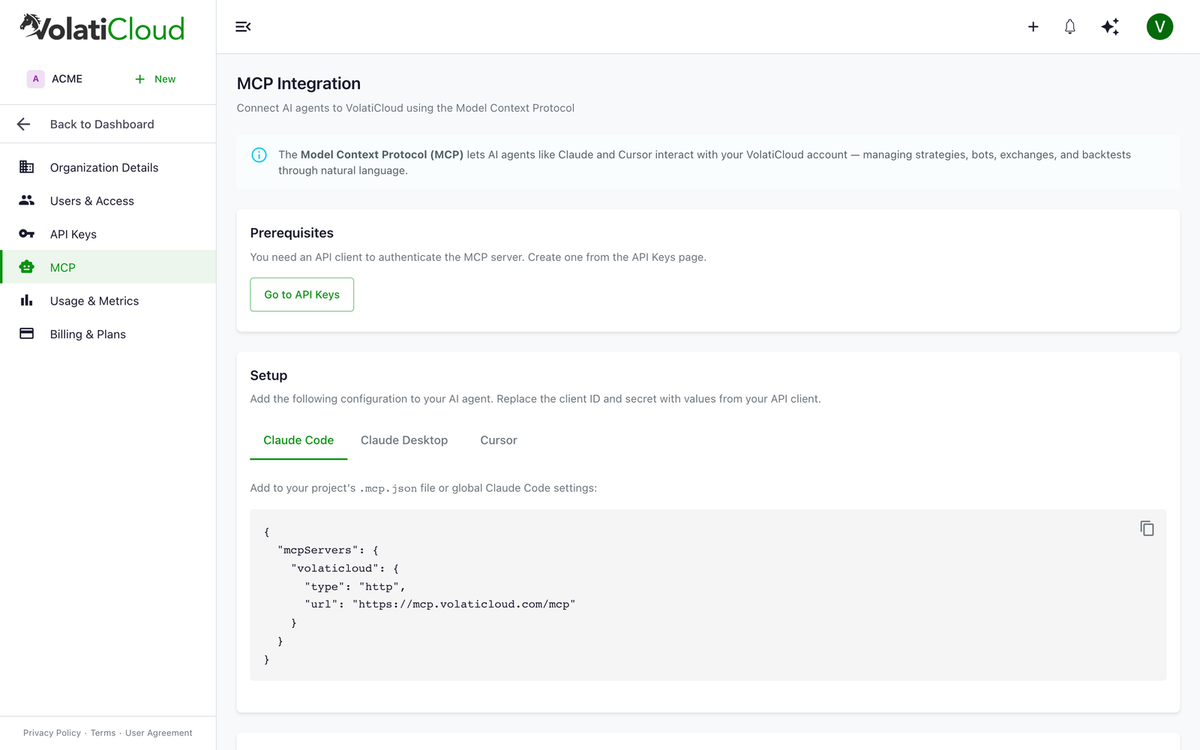
Step 1: Add the MCP Config to Your Editor
The hosted server lives at https://mcp.volaticloud.com/mcp. There's nothing to install locally; your agent just needs the URL.
Claude Code — drop this into .mcp.json at your project root or your global Claude Code settings:
{
  "mcpServers": {
    "volaticloud": {
      "type": "http",
      "url": "https://mcp.volaticloud.com/mcp"
    }
  }
}
Cursor — same JSON shape under Settings → Features → MCP Servers.
Claude Desktop — Claude Desktop doesn't yet support streamable-HTTP MCP transport directly, so it needs a small mcp-remote bridge:
{
  "mcpServers": {
    "volaticloud": {
      "command": "npx",
      "args": ["-y", "mcp-remote", "https://mcp.volaticloud.com/mcp"]
    }
  }
}
The full per-client config lives in the MCP overview docs.
Step 2: Restart Your Editor
The VolatiCloud tools appear in the assistant's context automatically. The first time you call one, your browser opens to the VolatiCloud Keycloak login screen. Sign in with your normal account, approve the consent screen, and your session is live for the rest of the conversation.
Step 3: Verify the Connection
Run a quick sanity check:
"List all my running bots and their current profit."
If the assistant returns live data, you're connected. The assistant calls the appropriate MCP tool, gets the response, and replies in plain language — chaining additional operations automatically when the task needs them.
Schema Awareness and Type Safety
The MCP server generates parameter schemas from the GraphQL schema on demand. The AI assistant gets real type information for every tool argument — required fields, enum values, nested object shapes — instead of guessing argument formats from documentation strings.
The server also handles cycle detection for self-referential types (common in filter inputs like BotWhereInput, which can nest and/or predicates indefinitely). Without that protection, schema introspection on complex GraphQL APIs tends to either loop forever or truncate type definitions silently. The VolatiCloud MCP server handles cycles automatically and emits well-formed JSON Schema even for deeply nested filter trees.
Before issuing complex natural-language requests, ask your assistant to call search_schema "bot" or introspect_schema. This is the fastest way to discover the operations available for a specific domain — much faster than reading the API docs first.
Security Considerations
The MCP server authenticates as you, the user, via OAuth PKCE. Every GraphQL operation it calls is subject to the same authorization rules that apply when you use the dashboard. If your role can't delete a bot through the UI, the agent can't delete it through MCP either. There is no shared service-account credential to leak or rotate.
Sensitive fields — like exchange API secrets and bot private credentials — are gated by the view-secrets scope. Even once authenticated, the agent can only read the fields your role allows. This means your AI assistant can read every bot's status and recent trades while remaining structurally incapable of exfiltrating exchange API keys.
In team environments, each developer authenticates with their own VolatiCloud account. The MCP session is per-user, not per-machine, so there's no shared credential to rotate when someone leaves the team.
Get Started
The MCP integration tab is available in Organization Settings under the MCP section, with the exact JSON config block ready to paste into Claude Code, Claude Desktop, or Cursor. The full reference — including troubleshooting for the OAuth callback flow and rate-limit behavior — lives in the MCP overview docs.
The server works with any editor or agent runtime that speaks the Model Context Protocol. Claude Code and Cursor connect directly via streamable HTTP; Claude Desktop uses the mcp-remote bridge.
If you're already using API clients for programmatic access from scripts or CI, the MCP server is the fastest way to make the same surface conversational.
Now that you're connected, the interesting part begins. See the companion post — AI Trading Workflows with Claude and MCP — for concrete recipes: backtesting from a conversation, multi-bot status reports, strategy iteration loops, and example prompts you can paste directly into Claude. Or open console.volaticloud.com and grab the config block right now.