Strategy Studio Simple & Pro Mode: One Builder, Every Skill Level

You opened the Strategy Builder for the first time. There are tabs for indicators, entry signals, exit signals, callbacks, RL, leverage, mirror mode, and hyperopt. By the time you've found the pair selector, you've forgotten why you came. That experience ends today.
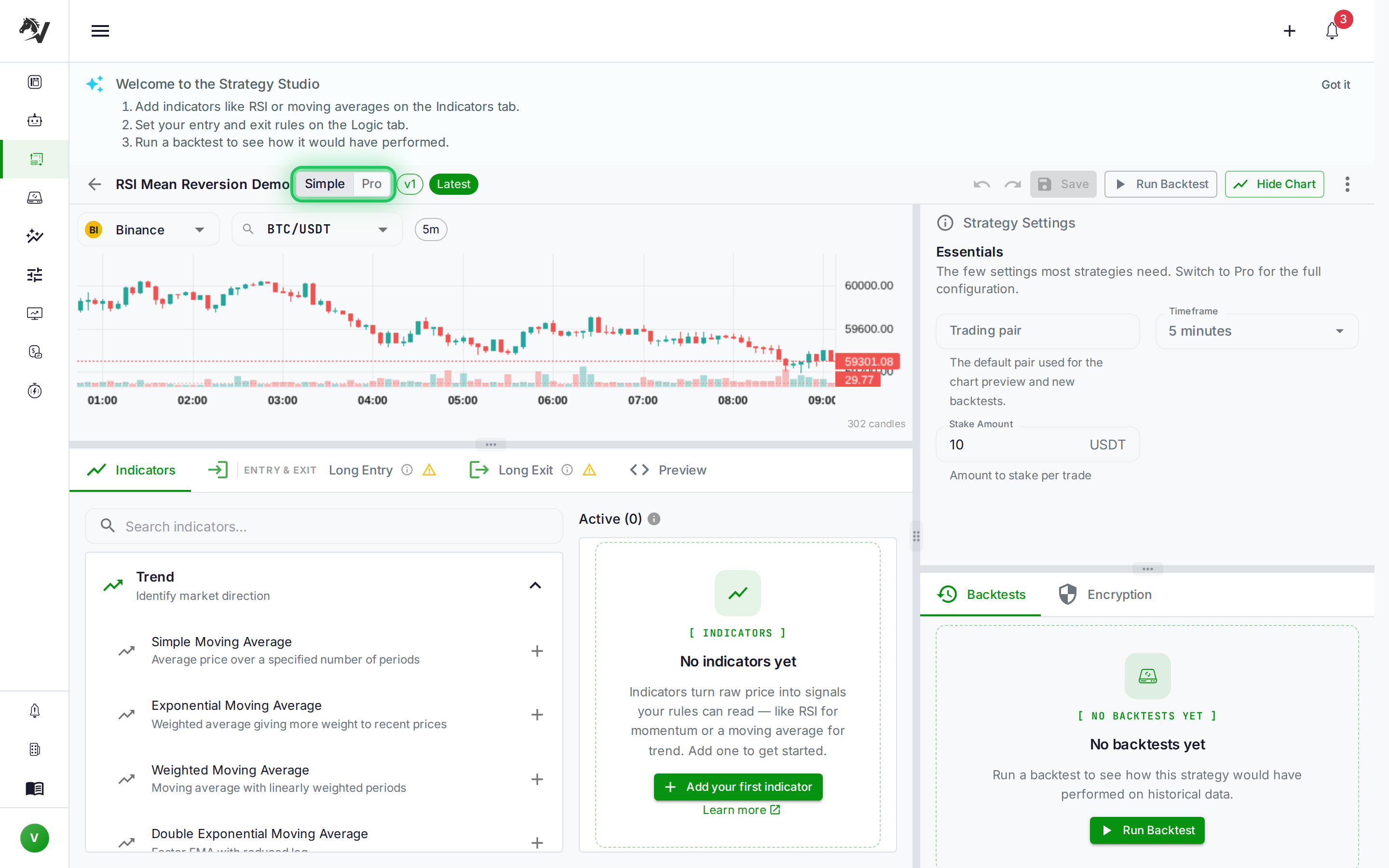
The Strategy Studio now has two modes: Simple and Pro. Same builder, same codebase, same backtest engine underneath — but the interface adapts to what you actually need right now. Beginners see a focused, guided surface. Advanced traders flip one toggle and get the full power tool. Your preference persists across sessions.
What Simple Mode Shows
Simple mode is for building and validating a strategy without confronting every option at once. The Studio shows:
- Indicators tab — add, configure, and search the full indicator library (RSI, EMA, MACD, Bollinger Bands, ATR, and 40+ more)
- Entry & Exit tab group — define your long entry and exit signals with the visual rule tree
- Preview tab — inspect the generated Python/Freqtrade config before running a backtest
- Essentials config — a three-field panel with just pair, timeframe, and stake amount
That's it. Callbacks, leverage settings, mirror mode, the RL tab, and the full Freqtrade config tree are all there — just not visible until you need them.
Simple mode is the right default for anyone who:
- Is building their first automated strategy
- Wants to validate a trading idea quickly before refining it
- Finds the Pro surface distracting when they're doing focused iteration
Simple mode is the default for new users. The Studio remembers your last choice in localStorage, so once you've switched to Pro and want it there every session, it sticks.
What Pro Mode Unlocks
Flip the toggle to Pro and the full builder appears:
| Feature | Simple | Pro |
|---|---|---|
| Indicators library | ✅ | ✅ |
| Entry & Exit signal tree | ✅ | ✅ |
| Preview (Python/config) | ✅ | ✅ |
| Essentials config (pair, TF, stake) | ✅ | ✅ |
| Callbacks & advanced logic | ❌ | ✅ |
| Leverage & margin mode | ❌ | ✅ |
| Reinforcement Learning tab | ❌ | ✅ |
| Hyperopt access (from indicators) | ❌ | ✅ |
| Mirror mode & short signals | ❌ | ✅ |
| Full Freqtrade config surface | ❌ | ✅ |
Pro mode is what experienced algo traders have always had — every knob, every edge case, every escape hatch. The difference now is that new users don't land on it cold.
Undo and Redo: A Safety Net for Experimentation
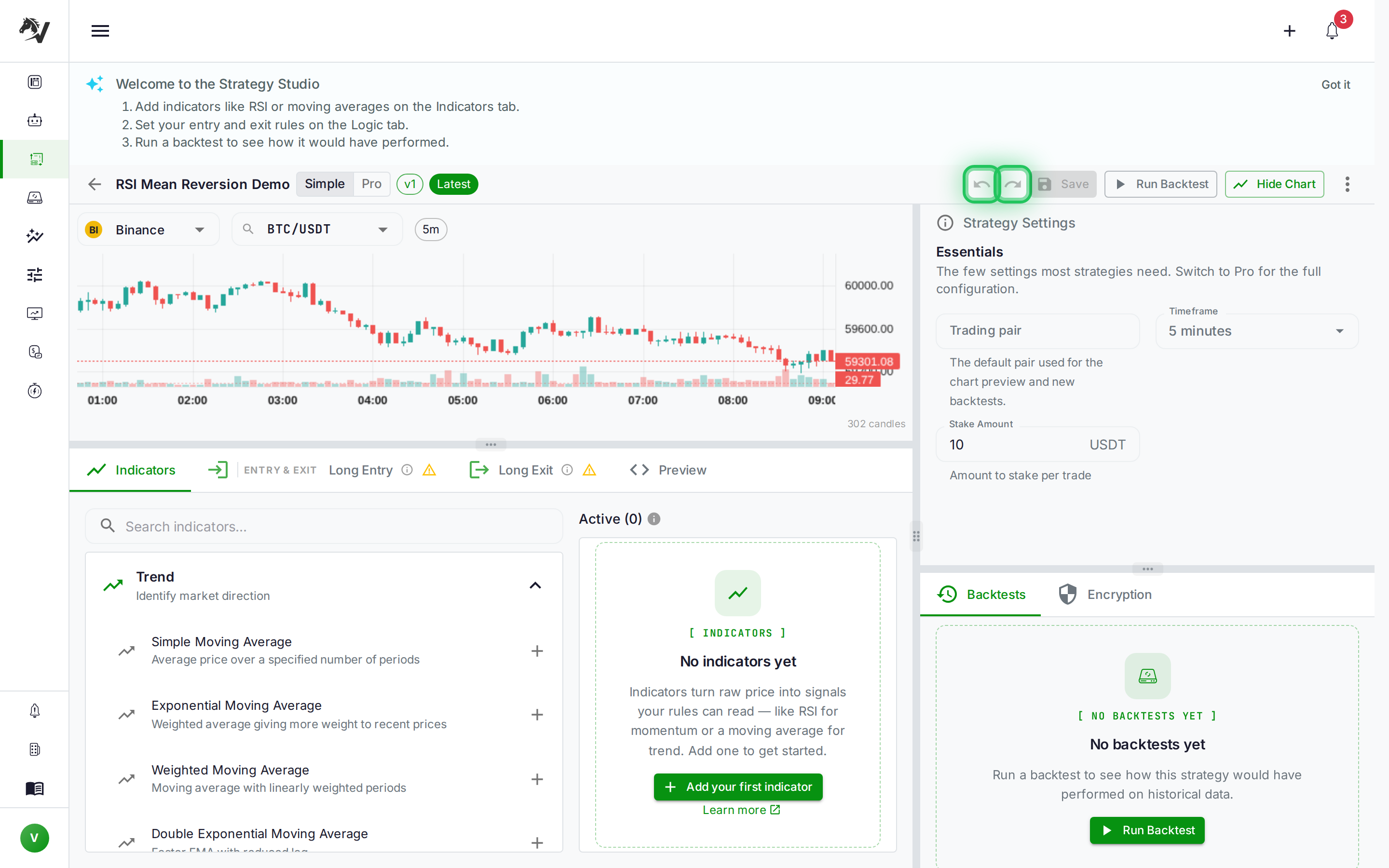
One of the most-requested features in the Studio is now live. Undo (Ctrl+Z / Cmd+Z) and redo (Ctrl+Y / Ctrl+Shift+Z) work across the full builder session — adding or removing indicators, changing parameters, editing your entry and exit conditions, adjusting config values.
The history buffer holds up to 50 state snapshots. Toolbar buttons show disabled when you hit the stack boundary, so you always know how far back you can go.
A few things are intentionally outside the undo scope: the Simple/Pro toggle, open drawers, and chart visibility. These are view-state choices, not strategy edits, and undoing them would feel like the UI fighting you instead of helping.
What this means in practice: you can explore freely. Change a parameter, try a different RSI period, rearrange entry conditions, then step back to where you were if it's not an improvement. The "save before experimenting" reflex that comes from working without undo is no longer necessary.
Drag-to-Reorder: Conditions in the Right Sequence
In the visual rule tree, conditions within a group are now drag-reorderable. Drag a condition card up or down to change where it sits in the logic sequence — the underlying strategy code and backtest results update accordingly.
This matters because the order of conditions isn't just cosmetic in some configurations. More practically, having your most important filter at the top of the entry logic makes the rule tree readable at a glance: you can see what fires first without scanning every row.
The drag handles are keyboard-accessible too, so you're not locked to mouse interaction.
DCA entry ladder rules follow the same pattern — drag a DCA level to reprioritize the entry sequence without having to delete and recreate the rule.
In-Place Indicator Parameters
Previously, adjusting an indicator's period, threshold, or applied price required reopening the add-indicator drawer. Now, parameter fields appear inline next to each indicator in the library panel. You can change an RSI period from 14 to 21, adjust a Bollinger Band deviation, or flip a moving average's applied price without leaving the Indicators tab.
The change is immediate — the preview updates in real time and the change is captured in the undo stack, so you can compare periods without committing.
For strategies that use several variants of the same indicator (e.g., an EMA(50) and EMA(200) for trend filtering), this makes iteration substantially faster than the old workflow of open drawer → change value → close drawer → repeat.
The Plain-English Rule Summary
Below the visual condition tree, the Studio generates a human-readable sentence describing what your strategy does. For a basic RSI mean reversion setup it might read something like:
Enter long when RSI(14) is below 30 and price is above EMA(200). Exit when RSI(14) crosses above 70 or stoploss at 2% triggers.
This updates live as you build. It's useful for two things: confirming that the logic tree you built actually expresses the idea you had in mind, and communicating your strategy to someone else without showing them the code.
The summary isn't a substitute for reading the generated code or running a backtest — it can't capture every Freqtrade config nuance — but it closes the gap between visual-tree building and "does this do what I think it does."
Building Your First Strategy in Simple Mode
The recommended flow for a new strategy:
- Start in Simple mode — opens automatically on first use
- Add 1-2 indicators on the Indicators tab (e.g., RSI + EMA as trend filter)
- Define entry signals — add a COMPARE condition for RSI below your oversold threshold, then add a COMPARE condition requiring price above EMA(200)
- Define exit signals — RSI crossing above overbought, or a fixed profit target
- Check the plain-English summary — does it match your intent?
- Preview the generated code — scan for obvious misconfigurations
- Run a backtest — one click from the toolbar, no leaving the Studio
Once the backtest results look reasonable, flip to Pro mode and tune the stoploss, trailing stop, ROI table, and stake amount. Then run hyperparameter optimization to find the best parameter set within your ranges.
If you want a head start, the strategy template gallery ships patterns you can open directly in the Studio and customize — see Strategy Template Gallery: Launch Your First Crypto Bot in Minutes.
How VolatiCloud Wires This Together
The Simple/Pro toggle is the first major IA change to the Strategy Studio since its original release. It reflects a tension that every trading platform faces: power users need every control available; new users need a path that doesn't overwhelm.
VolatiCloud's answer is one builder with two lenses. The Simple surface is curated, not dumbed down — all the same logic primitives are there, just the configuration surface area is narrowed to what matters for a first or second strategy. When you need more, the toggle is one click away.
The undo/redo and drag-reorder work the same in both modes, because those are ergonomic features, not complexity features. Whether you're building your third strategy or your three-hundredth, you should be able to move fast without worrying about losing work.
For a full walkthrough of the visual builder — how the indicator library is organized, how logic trees compose — see VolatiCloud Strategy Builder: Step-by-Step Walkthrough. For the versioning system that lets you commit a stable version before experimenting, see Strategy Versioning & Forking.
Start Building
The Simple/Pro toggle, undo/redo, and in-place parameters are live in the console now. Open your next strategy in console.volaticloud.com and start in Simple mode — or flip to Pro immediately if you've been here before. Either way, the undo button has your back.