VolatiCloud Credits System
Credits are VolatiCloud's prepaid usage currency — the unit you spend whenever a bot, backtest, or hyperopt run consumes resources on a runner, or the AI assistant answers you. They're the second of billing's two layers: your subscription unlocks features, credits pay for use. This page covers how credits are deducted, where they come from, what every transaction type means, and the rules that surprise people most often (no subscription rollover, FIFO reclaim on cancel, trial credit lifecycle).
One credit equals one US dollar. All deposits, deductions, and balances on the dashboard are denominated in credits at $1 each.
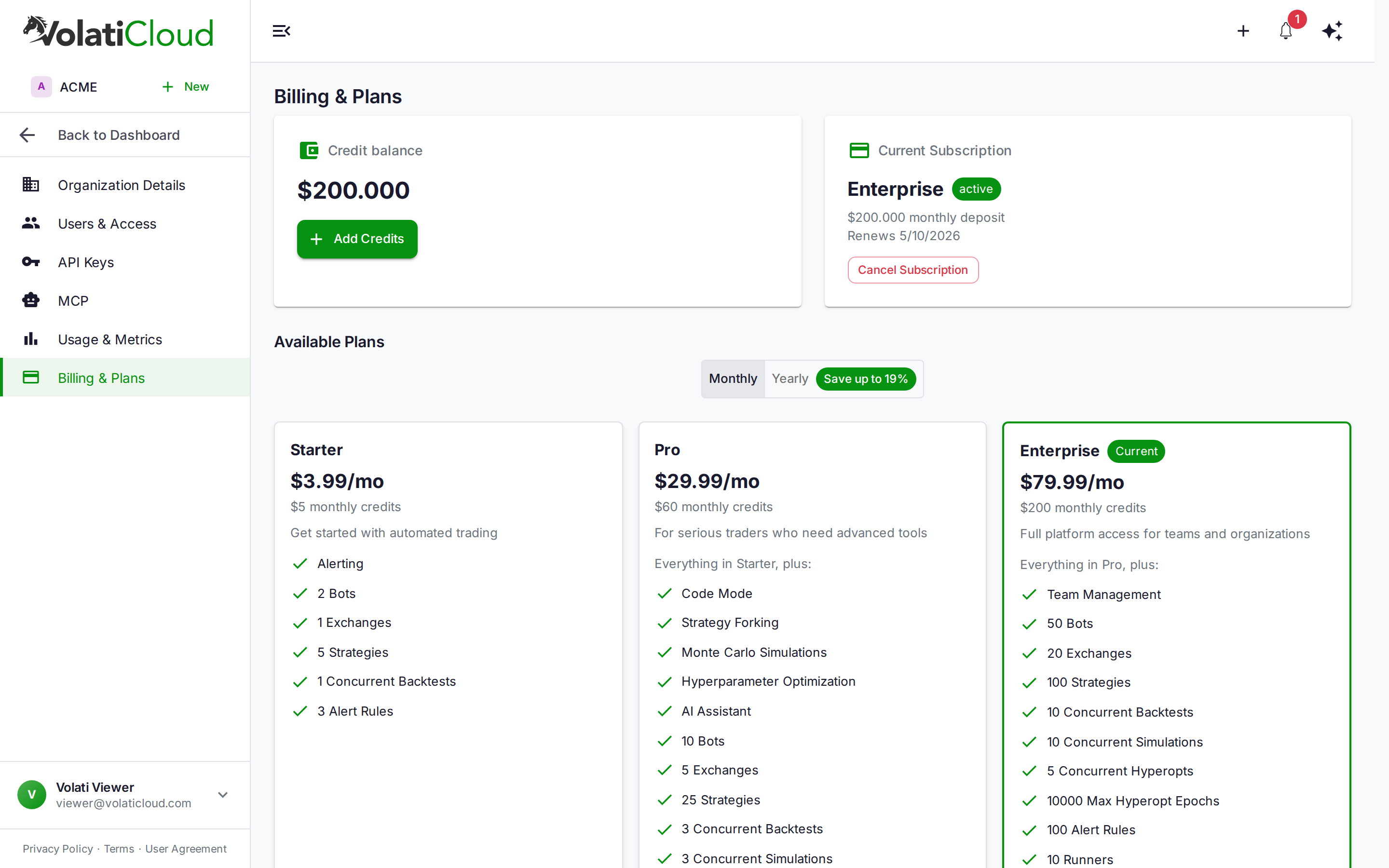
Credit Lifecycle in Four Steps
- Earn credits — your subscription auto-deposits monthly; you can also top up manually any time.
- Run workloads — bots, backtests, and hyperopt runs deduct credits hourly based on actual resource usage.
- Monitor balance — view current balance, transactions, and projected cost on the Billing and Usage pages.
- Top up before zero — a low-balance alert fires below $5.00 to give you time before suspension.
How Credits Are Deducted
Credits are deducted hourly while workloads run, based on the resources they consume:
| Resource | What it measures | Charged when |
|---|---|---|
| CPU | CPU-seconds | Bot or backtest is running |
| Memory | GB-hours | Bot container is allocated memory |
| Network | GB transferred | Bot fetches market data and places orders |
| Storage | GB-month | Bot's SQLite database and historical OHLCV cache |
The exact rates depend on the runner's infrastructure (Docker host, Kubernetes cluster, runner type). The Organization Usage page shows live consumption, projected cost, and per-bot breakdown so you can identify resource-heavy bots before they drain your balance.
A stopped bot consumes zero credits — only running workloads cost credits. Suspending a bot mid-month is a valid cost-control strategy.
Metering is not the whole story on VolatiCloud's cloud runner: a backtest or hyperopt pays at least a fixed minimum charge, and each bot start carries a small charge of its own. See Minimum Charges for the amounts and when they apply.
The AI Assistant Also Spends Credits
Compute is not the only thing credits pay for. The AI chat assistant is unlocked by your subscription, but each conversation turn is metered per token and deducted from the same balance, itemised in the ledger as AI chat.
| What is measured | Charged when |
|---|---|
| Input tokens | Your message, the conversation so far, and any data a tool returned to the model |
| Output tokens | Everything the model generates — its answer, and the tool calls it makes on the way there |
Two things follow from this that surprise people:
- One turn is several model calls. When the assistant looks something up, runs an operation, and then answers you, each of those steps is its own call to the model and each one is billed. A turn that does more work costs more than a turn that just answers a question. (Until September 2026 only the final call was counted — see the announcement.)
- A failed call is not your cost. If the model provider itself fails, that call is not billed to you. VolatiCloud retries it and absorbs the cost of the failure.
Rates differ per model. Prompt tokens served from the provider's cache are billed at a discounted cache-read rate, so a long conversation is cheaper per turn than its raw token count suggests.
How Credits Are Added
Three sources, each with different rules:
| Source | Trigger | Persistence |
|---|---|---|
| Subscription auto-deposit | Each billing renewal | Cleared at next renewal — no rollover |
| Manual top-up | Stripe Checkout completes successfully | Carries over indefinitely |
| Trial deposit | When you start the 7-day Pro trial | Cleared at trial end or conversion |
Subscription Auto-Deposit
Your subscription deposits credits at the start of each billing period:
| Plan | Monthly auto-deposit |
|---|---|
| Free | None — a one-time grant when the organization is created |
| Starter | $5 |
| Pro | $60 |
| Enterprise | $200 |
The deposit is per month on both monthly and yearly billing — a yearly subscription is charged once but still receives its monthly allowance each month. The amount in force for your subscription is shown on the Available Plans grid.
Free is the exception: it has no subscription, so nothing recurs. Its credits arrive once, at organization creation, and are not topped up each month. When that grant is spent, a Free organization either tops up manually or subscribes.
Manual Top-Up
Top up any time — typically when usage runs ahead of your monthly allowance, or right before a long backtest sweep.
- Open Organization → Billing
- Click Add Credits
- Enter the dollar amount
- Pay via Stripe Checkout
- Credits land in your balance immediately on payment success
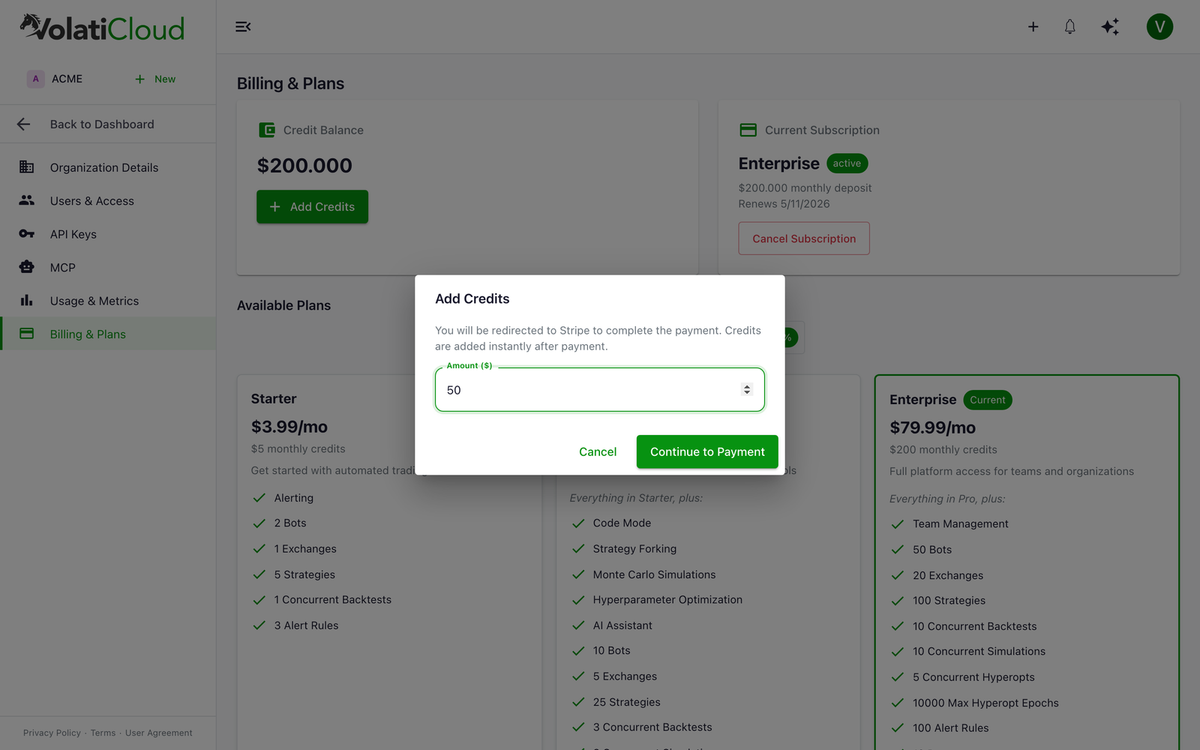
Manual credits are never cleared by subscription resets, downgrades, or cancellations. They are yours until you spend them.
Transaction History
Every credit movement is recorded as a row in the Transaction History table. The table is the authoritative ledger — if a number on the balance card looks wrong, this is where to debug it.
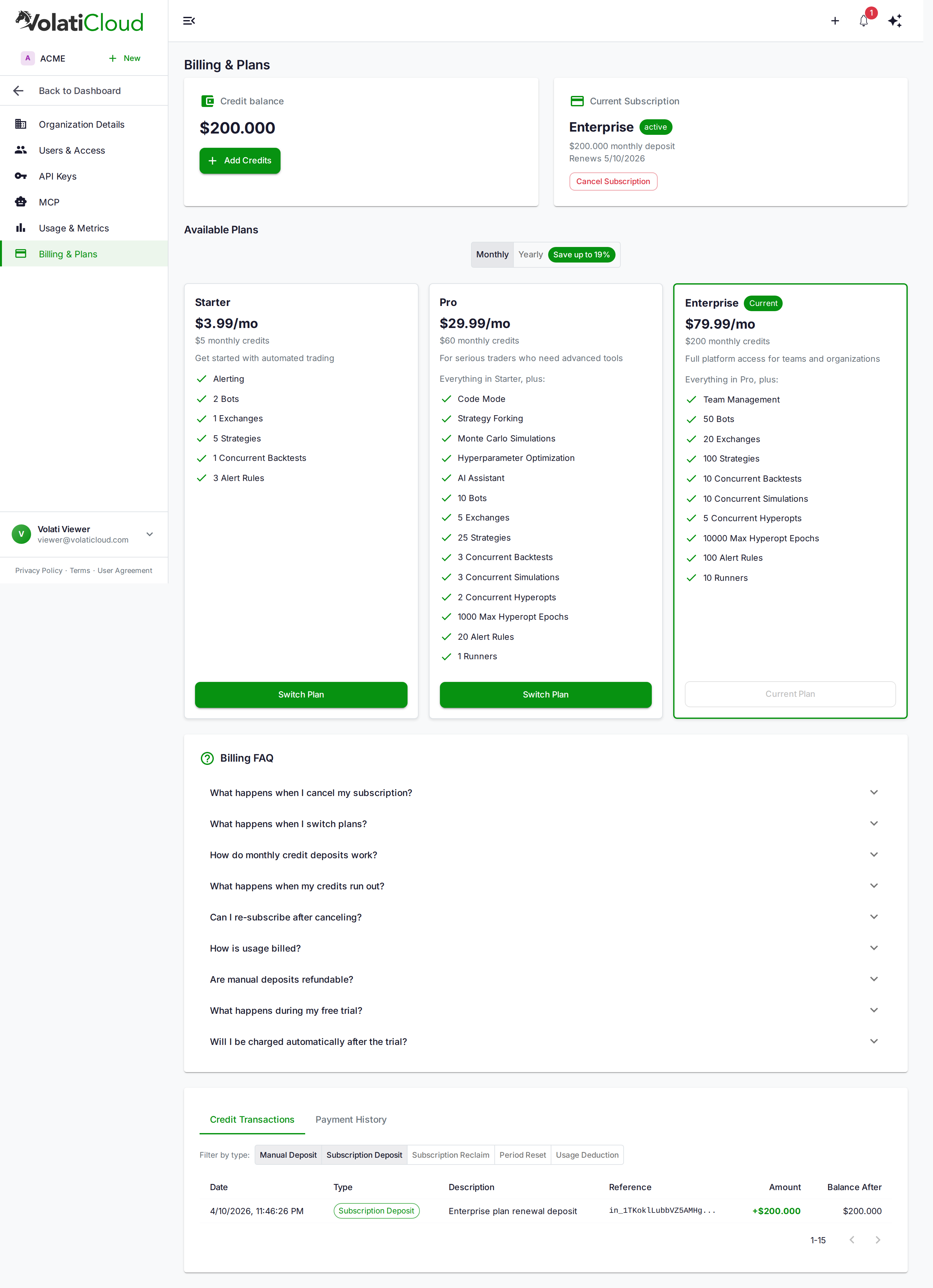
Transaction Types
| Type | Sign | What it means |
|---|---|---|
subscription_deposit | + | Monthly credits added at subscription renewal |
manual_deposit | + | Stripe-paid top-up via Add Credits |
subscription_deposit (trial) | + | Trial credits deposited at trial start (reference prefix trial-deposit:) |
usage_deduction | − | Hourly deduction for running bots, backtests, hyperopt |
subscription_reset | − or 0 | Leftover subscription credits cleared at billing renewal |
subscription_reclaim | − or 0 | Subscription credits removed on cancellation |
subscription_reclaim (trial) | − or 0 | Trial credits removed on trial cancel or expiry |
Zero-amount entries (subscription_reset 0 or subscription_reclaim 0) are written as idempotency sentinels when there's nothing to clear — they're a normal part of the ledger and confirm the operation ran.
The No-Rollover Rule (Subscription Credits)
Subscription credits do not carry over between billing periods. Manual credits do.
How the reset works
At each renewal, the system runs in this order:
- Compute leftover subscription credits:
MAX(0, sub_deposited_this_period − usage_this_period)(FIFO accounting — usage is deducted from subscription credits first, manual credits last). - Write a
subscription_resetledger entry for that amount. - Deposit the new period's
subscription_deposit.
After the reset, your balance is:
balance = manual_credits + new_monthly_deposit
Worked example
You're on Pro ($60/month auto-deposit) and you also have $100 in manual credits.
| Event | Manual credits | Subscription credits | Balance |
|---|---|---|---|
| Start of period | $100 | $60 | $160 |
| Spent $5 this period (FIFO from sub) | $100 | $55 | $155 |
Period renewal — subscription_reset $55 | $100 | $0 | $100 |
subscription_deposit $60 | $100 | $60 | $160 |
Your $100 of manual credits never moved. The $55 of leftover subscription credits cleared, then a fresh $60 deposit landed.
This rule keeps subscription pricing predictable — credits are a monthly allowance, not an accumulating bank.
Running Out of Credits
When the balance hits zero:
- All running bots are gracefully stopped. Open positions are not force-exited — they remain on the exchange exactly as they were.
- A Suspended banner appears across the dashboard.
- Backtests and new bot starts are blocked.
- Your data is preserved. Strategies, backtests, trade history, and configurations are all intact.
Top up via Add Credits. As soon as the Stripe payment succeeds the suspension lifts, and on a plan that includes bots you can restart them immediately.
A low_credit_balance alert fires when the balance drops below $5.00 so you have lead time before suspension. Configure alert delivery (email, Slack, in-app) from the Alerts page.
Trial Credits
When you start a free trial of the Pro plan, you receive $60 in trial credits to use during the 7 days.
How trial credits behave
- Deposited immediately at trial start, recorded as a
subscription_depositwith atrial-deposit:reference prefix. - Spent at normal rates by bots, backtests, and hyperopt — no special discount, no separate balance.
- Reclaimed on cancellation or expiry via a
subscription_reclaimentry.
What happens at trial conversion
When the 7 days end and the trial converts to paid Pro:
- Any remaining trial credits are cleared.
- A fresh $60
subscription_depositlands as the first paid month's allowance. - Your first Stripe invoice is generated.
- The balance reflects the new monthly deposit plus any manual credits.
Trial credits are deliberately self-contained — they don't carry into the paid subscription. The slate is wiped at conversion and your paid period starts clean.
If you cancel during the trial
- No charge is made to your card
- Trial credits are reclaimed immediately, and the workspace moves to the Free plan
- Running bots are stopped, because Free includes no bots
- Backtests still run within Free's limits while you have credits left; if none remain, they are paused until you add credits or subscribe
- Your data (strategies, backtests, history) is preserved
When You Cancel Your Subscription
When a cancelled subscription reaches the end of its period, the workspace moves to the Free plan and a one-time reclaim removes unused subscription-provided credits. Manual credits are kept.
The reclaim is calculated using FIFO accounting — usage is assumed to consume subscription credits first:
net subscription credits = MAX(0, total_subscription_deposits − total_usage)
new balance              = MAX(0, current_balance − net_subscription_credits)
Example: $20 balance ($30 sub deposit, $15 manual deposit, $25 used). Net subscription credits = MAX(0, 30 − 25) = $5. New balance = $20 − $5 = $15 — your manual credits remain.
What the reclaim leaves decides what you can still do. If credits remain, the organization is not suspended, and backtests keep running on that balance within Free's limits. If the balance is $0, the organization is suspended and backtests are paused until you add credits or subscribe. Either way, bots stay stopped until you subscribe to a plan that includes them.
Estimating Future Usage
The Organization Usage page shows what you're spending and what's coming:
- Current period usage — credits consumed since the last renewal
- Cost projection — extrapolated end-of-period cost at current burn rate
- Per-bot breakdown — which bots are the heaviest consumers
- Usage charts — CPU, memory, network, and storage trends per bot
Use it to:
- Identify bots that are over-provisioned or stuck in tight loops
- Decide whether to top up or downgrade
- Compare runner types — Kubernetes vs Docker — at the same workload
Tips to Reduce Credit Consumption
- Stop bots you're not actively using. Stopped bots cost zero.
- Right-size your runners. Don't allocate 4 vCPU for a 1-pair Dry Run bot.
- Reduce monitored pairs. Fewer pairs = lower CPU and lower OHLCV cache footprint.
- Simplify strategies. Heavy indicator stacks compound CPU on every candle.
- Use shared historical data PVCs on Kubernetes so each bot doesn't re-cache the same OHLCV files.
Frequently Asked Questions
Do unused subscription credits roll over?
No. Subscription credits are reset at the start of each billing period (a subscription_reset ledger entry records the cleared amount). Manual top-ups are unaffected and persist indefinitely.
Are my manual credits locked when my subscription ends? No. Unused subscription or trial credits are removed, but manual top-ups stay on the balance and stay spendable: the workspace moves to the Free plan, and backtests run on those credits within Free's limits. Bots stay stopped, because Free includes no bots. Only a balance of $0 suspends the organization.
What happens to my bots when credits run out? All running bots are gracefully stopped. Open exchange positions are not force-exited — they stay on the exchange. When you top up, you can restart bots and they pick up the existing positions.
How quickly are manual top-ups applied? Immediately on Stripe payment success.
Can I get a refund on credits? Credits are generally non-refundable. Contact support for exceptional circumstances.
Related guides
- Billing Overview — Subscription + credits model, suspension rules, plan changes.
- Minimum Charges — The per-backtest, per-hyperopt, and per-bot-start floors on the cloud runner.
- Plans & Pricing — Plan comparison, yearly billing, free trial details.
- Billing FAQ — Detailed answers on cancellation accounting, downgrades, and payment retry.