Pending Invitations: Track, Resend, and Cancel Team Invites

You invite a teammate to your trading org, they never see the email — spam filter, typo, or it just expired after a week — and now you're stuck. Cancel the invite and send a new one? That's two separate operations, and if the invitee had a role other than the default, there's nothing forcing the second invite to carry it over. VolatiCloud's People & Access hub closes that gap with a dedicated Pending Invitations tab and a resend action that reissues the invite in one atomic step, role intact.
Why "Cancel, Then Re-Invite" Was Never a Real Fix
Before this feature shipped, an admin who wanted to redo a stale invitation had exactly one option: cancel it and open the invite form again. That sounds equivalent to a resend, but it isn't:
- It's two operations, not one. If the cancel succeeds and the re-invite fails — network blip, session timeout, someone closes the tab — the org is left with no record that the person was ever invited.
- The role isn't preserved automatically. Nothing about "cancel + re-invite" guarantees the second invite carries the same role as the first. An admin has to remember it, and busy admins forget.
- There's no visibility into what's outstanding. Without a dedicated view, "who have we invited but who hasn't joined yet" is a question you can only answer by asking around.
None of these are edge cases. They're the normal cost of running team invitations as an implicit, two-step manual process instead of a first-class feature.
The People & Access Hub
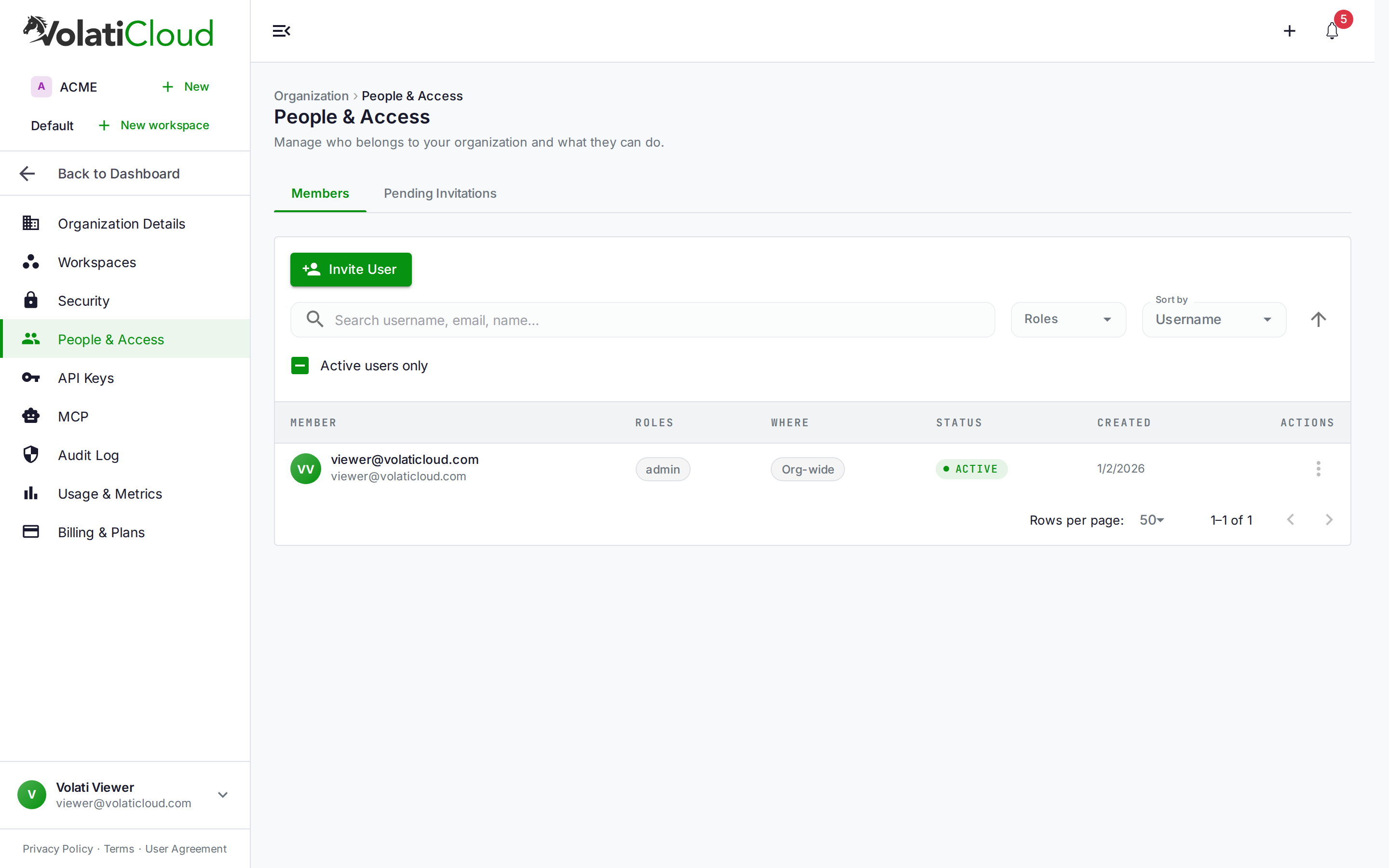
VolatiCloud consolidated organization membership into a single People & Access hub under Organization, replacing the older split between a users list and a separate resource-groups view. The hub has two tabs every admin sees, and a third gated by an experimental flag not yet in general availability:
| Tab | What it shows |
|---|---|
| Members | Everyone who has joined the org, their role, and actions like changing role or removing access |
| Pending Invitations | Every invite that's been sent but not yet accepted, with status and per-row actions |
The Pending Invitations tab only appears for members with the invite-user scope — the same permission gate discussed in the team management overview. If you can't invite people, you don't see who's been invited, which keeps the tab from leaking membership intent to viewers.
What the Pending Invitations Tab Shows
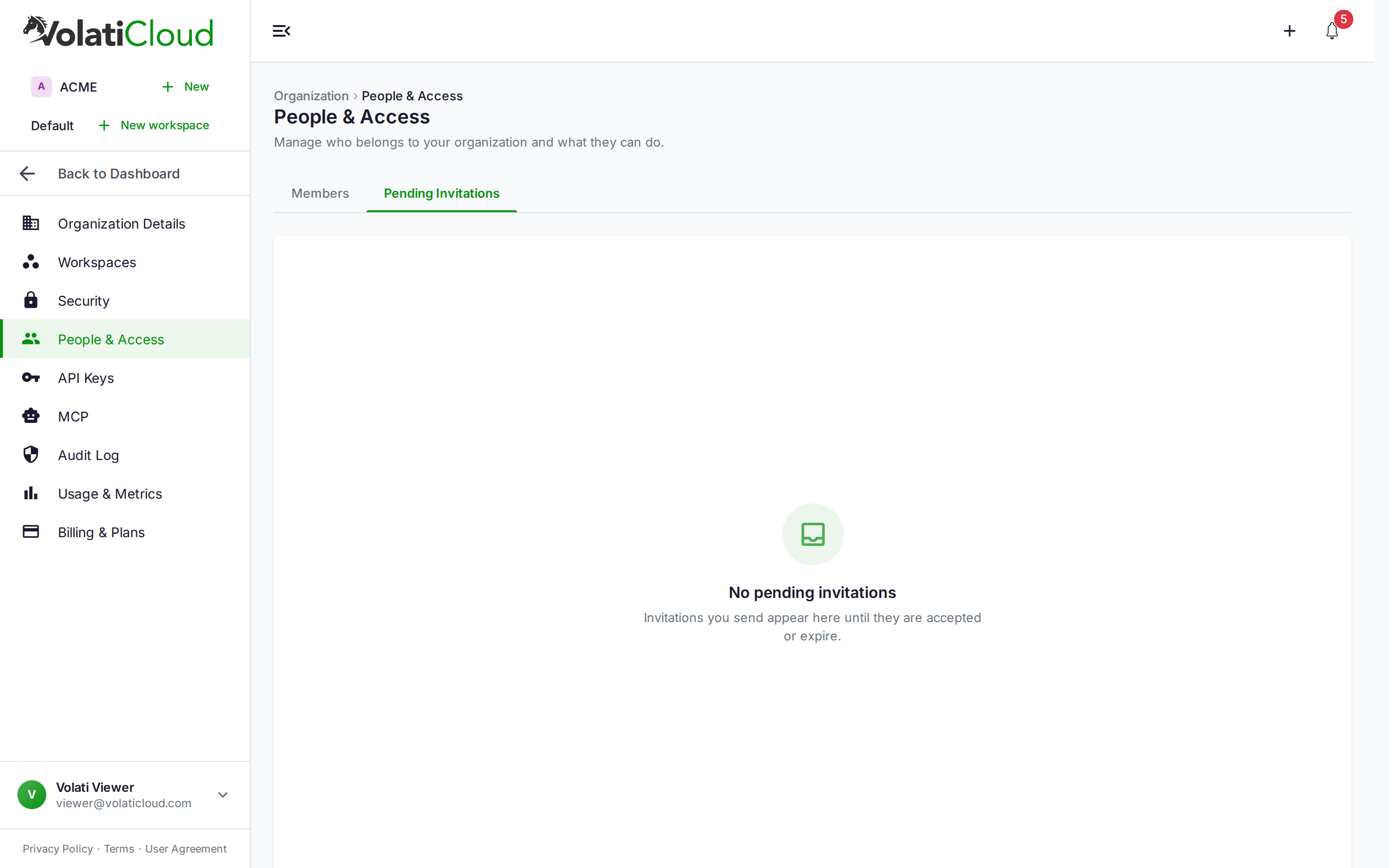
When there's nothing outstanding, the tab shows a simple empty state — as soon as you invite someone, a row appears here and stays until it's accepted or expires. Each row lists:
- The invitee's email (and name, if they supplied one before accepting)
- When the invite was created, shown as a relative timestamp
- Status —
PendingorExpired, as a colored badge
From the row menu, an admin can:
- Resend — re-issue the invitation with a fresh link and a reset expiry window, without touching the invitee's assigned role
- Cancel — revoke the invite outright, removing it from the list (with a confirmation dialog, since this can't be undone)
Resend is deliberately a single click with no confirmation dialog — it's non-destructive, it just sends another email — while Cancel asks you to confirm, because it permanently discards the invitation.
Resend Is Atomic, and That's the Point
Under the hood, resendOrganizationInvitation is a single backend mutation, not a client-side cancel-then-invite pair. The distinction matters for two reasons:
It can't fail halfway. The Keycloak-backed invitation service re-issues the invite — new ID, fresh link, reset expiry — inside one transaction. There's no window where the old invite is gone but the new one hasn't landed yet.
The role travels with it, server-side. The invitee's originally assigned role is read authoritatively from the existing invitation record and reapplied to the reissued one. The client never has to know or resend the role — which also closes a subtle failure mode: the invitation-listing API doesn't echo roles back to the browser at all, so a client-driven "cancel and re-invite" would have had no way to preserve a non-default role even if someone remembered to try.
Invitations Still Expire After 7 Days
The expiry window from the original team management post hasn't changed — invitations still lapse after 7 days if unaccepted. What's new is that you can now see when that's happened instead of finding out only when the invitee asks "did you actually invite me?" three weeks later. An expired row shows the Expired badge; Resend on that row generates a brand-new link with a fresh 7-day window, so you don't need to Cancel first.
Where This Fits for Trading Teams
For a fund desk or a two-person trading partnership, onboarding friction is invisible until it happens to you. A junior analyst's invite email lands in quarantine, three days pass, and now the person you wanted looking at bot performance today is still locked out. With the Pending Invitations tab, the admin who sent the invite can check the hub, see the invite is still Pending, and either wait it out or resend immediately without guessing whether a second invite would silently downgrade the analyst back to a default role.
Combined with the view-secrets scope separation covered in the team management guide, the full picture is: invite precisely, verify the invite landed, and know that exchange API keys stay hidden from anyone who hasn't been explicitly granted access — whether they joined five minutes ago or five months ago.
Getting Started
- Open Organization → People & Access in the console
- Use the Members tab to see who's already in the org and their role
- Switch to Pending Invitations to see outstanding invites — anyone who hasn't accepted yet
- Resend a stale invite in one click, or Cancel it if the person no longer needs access
Pending Invitations requires the invite-user scope, available to organization admins by default.
Open your organization's People & Access hub to see who's still pending. Open the console →
Related guides
- Team Crypto Trading: Role-Based Access Without Sharing API Keys — Roles, scopes, and the
view-secretsprotection model this feature builds on. - Organization Overview — Full permission scope reference and multi-org management.
- Team Management — Step-by-step guide to inviting users and assigning roles.