People & Access Hub: Never Lose Track of a Pending Invite Again

Three weeks ago you invited a contractor to your VolatiCloud organization. Did they accept? Is the invite link still valid, or did it quietly expire while you were focused on live bots? Under the old Users page there was no way to know — invitations vanished into Keycloak the moment they were sent, and the only way to check status was to ask the person directly. VolatiCloud's new People & Access hub closes that gap, consolidating member management and invitation tracking into one page.
What Changed
The old Organization Users page mixed a flat member list with a separate "Resource Groups" tree — a raw view into the underlying Keycloak group structure that most teams never needed to touch directly. It worked, but it exposed implementation detail that had nothing to do with the question a team admin actually asks: who has access to what, right now, and who's still waiting on an invite?
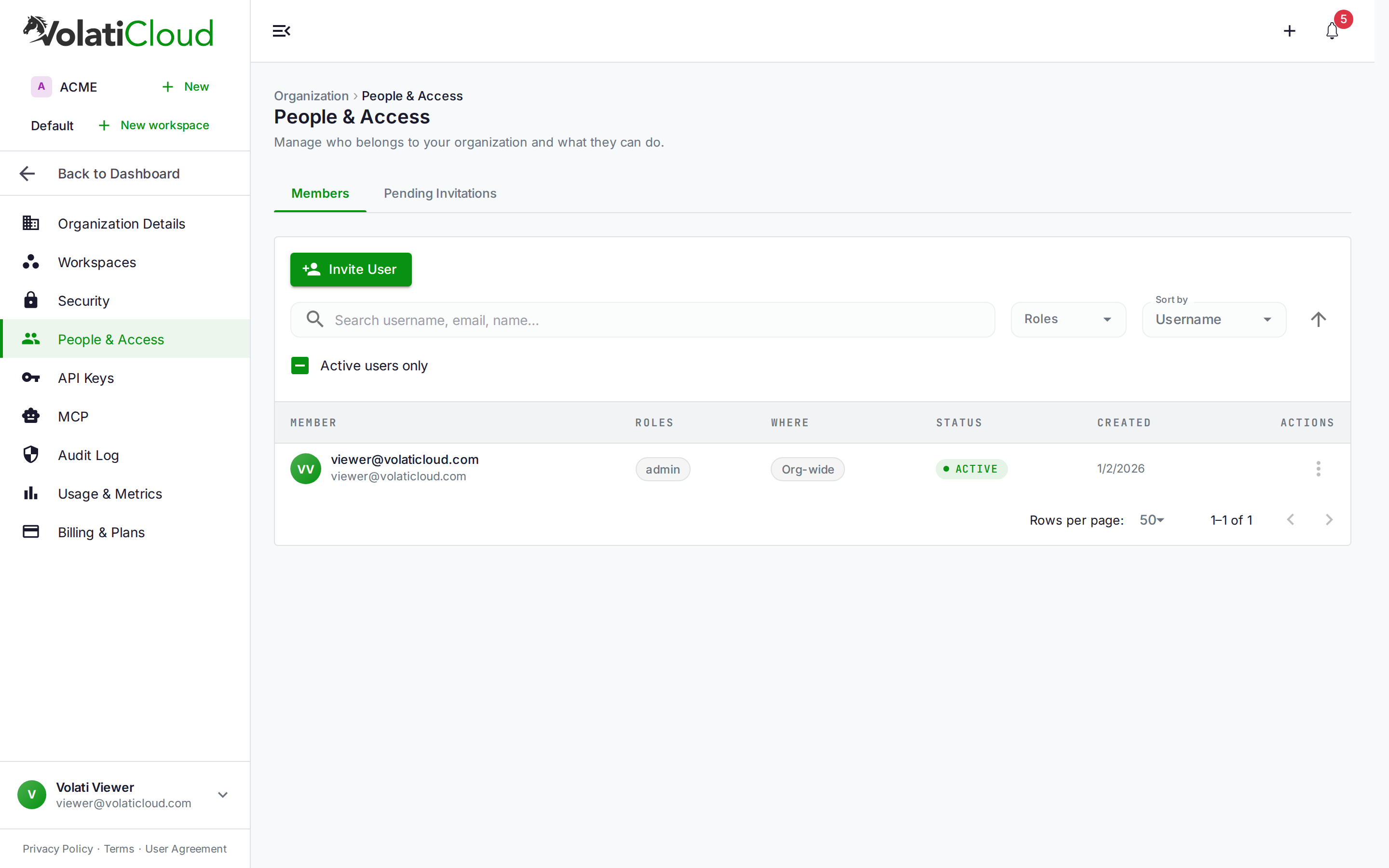
The People & Access hub answers that with two tabs instead of a tree:
| Tab | What it shows |
|---|---|
| Members | Everyone currently in the organization, their role, and quick actions to change or remove access |
| Pending Invitations | Every invite that's been sent but not yet accepted, with status and a Cancel action |
Old deep links to the Resource Groups tree (/organization/users/:resourceGroupId) redirect straight to the new hub, so bookmarks and shared links from before the change keep working — you just land on a cleaner page.
The Members Tab
The Members tab is where you manage who's actually in your organization. Each row shows the member's email, avatar, and current role badge (Admin or Viewer today — see Team Management for the full permission matrix), with a per-row menu for the actions your own role permits:
- Change role — move someone between Admin and Viewer
- Remove — revoke their access to the organization entirely
Because the table is scope-aware, a Viewer sees the same list without the action menu — read access to "who's on the team" doesn't require write access to change it. That mirrors the split VolatiCloud already applies everywhere else: viewing a bot's status and having view-secrets on its exchange config are two different scopes, and viewing the member list and having change-user-roles are two different scopes too.
The Pending Invitations Tab
This is the actual gap the redesign fixes. Previously, once you sent an invite, it disappeared from your view — you had no record of who you'd invited, when, or whether the link had expired. If someone never got around to accepting, you'd either forget about it or re-invite blind, unsure whether you were creating a duplicate.
The Pending Invitations tab lists every outstanding invite with:
- The invitee's email
- When the invitation was sent
- Status — Pending or Expired
- A Cancel action to revoke an invite that's no longer wanted
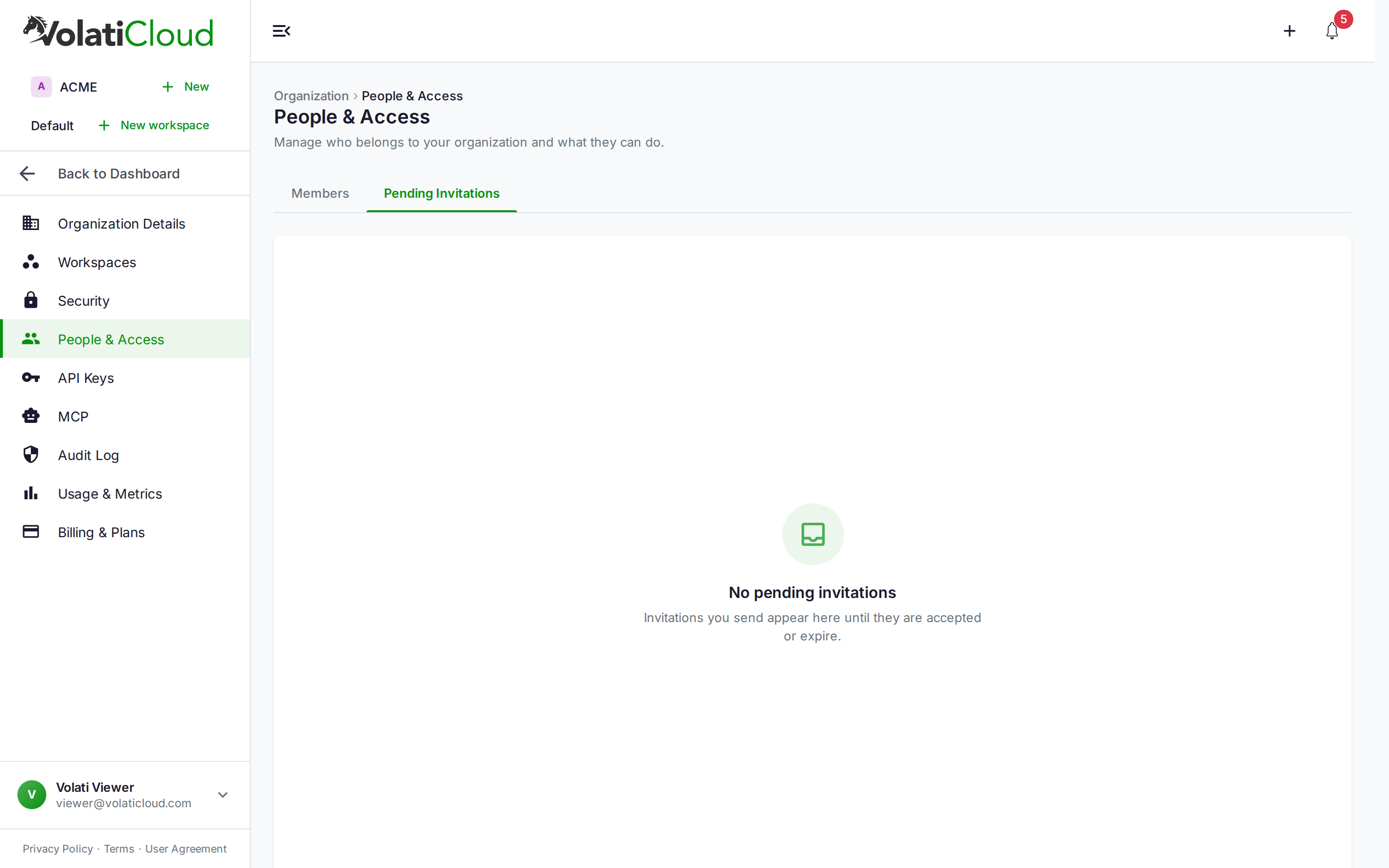
When the list is empty — as above — that's the state you want to see most of the time: it means every invite you've sent has either been accepted or has already been cleaned up. Once you invite someone, they show up here as Pending until they accept (at which point they move to the Members tab) or until the invite expires.
Canceling matters more than it sounds. An accepted invite grants a login the moment it's clicked, and an unattended one is a standing credential you no longer control the timeline for — someone who left the company, a wrong email address, a contractor engagement that ended early. Being able to see the invite and kill it, instead of hoping the link quietly expires, closes a real access-hygiene hole.
Audit the Pending Invitations tab whenever you do a quarterly access review. An invite sitting there for weeks is either a mistake worth fixing (wrong email, forgotten follow-up) or an invite you no longer want live — cancel it either way.
One deliberate omission: there's no "Resend" button. A client-side cancel-then-reinvite isn't atomic — if the request to cancel succeeds but the new invite fails, you've lost the invitation outright with no way to recover it short of starting over. VolatiCloud would rather you re-invite explicitly (which re-confirms the role you're granting) than offer a resend that can silently drop someone's access mid-flight.
What Admins and Viewers Can Actually Do
The Members tab surfaces roles, but it's worth being explicit about what each role controls, since the invitation flow and the member flow both funnel into the same two-role model:
| Capability | Admin | Viewer |
|---|---|---|
| View bots, strategies, backtests, exchange connections | ✅ | ✅ |
| Start, stop, or force-exit a bot | ✅ | ❌ |
View exchange API keys (view-secrets scope) | ✅ | ❌ |
| Invite new members, cancel invitations | ✅ | ❌ |
| Change a member's role, remove a member | ✅ | ❌ |
| View billing, credits, and invoices | ✅ | ❌ |
The pattern holds across the whole hub: anything that changes state (inviting, canceling, changing a role, spending credits) requires Admin. Anything that's purely observational — including seeing that an invitation exists — is available more broadly, so a Viewer isn't locked out of understanding the state of the organization, just from changing it.
A Concrete Scenario
Say your team runs three live bots on Binance and Bybit, and last quarter you brought on a freelance quant to help tune a strategy. You invited them as an Admin so they could push changes and run backtests. The engagement ended in April. Today:
- Open People & Access → Members. If the freelancer's invite was accepted, they're still listed as an Admin — with full access to your exchange keys and the ability to stop or modify live bots. That's the row to act on: change their role to Viewer immediately, or remove them outright if the relationship is fully over.
- Open Pending Invitations. If they never actually accepted (a plausible scenario — maybe the invite went to an old email address), the invite is still sitting there as Pending, technically still redeemable by whoever controls that inbox. Cancel it.
Neither of those checks was reliably possible from the old Users page. The Resource Groups tree told you about Keycloak group membership, not about outstanding invitations, and there was no invitation-specific view at all — you'd have needed to remember who you invited and cross-check manually.
Why the Split Matters for Access Hygiene
Split responsibility is the whole point of role-based access control, and it applies to invitations just as much as it applies to bots and exchange keys. Before this change, "who did we invite" and "who's actually in the org" were two different questions with only one of them answerable from the UI. Now both live in the same hub, side by side, so a security review doesn't require cross-referencing email threads against a member list that only tells half the story.
This is the same philosophy behind VolatiCloud's team management model: give every collaborator their own login with scoped permissions instead of sharing credentials, and make the state of who-has-access-to-what fully auditable from inside the product — not reconstructed from Slack messages and memory.
Getting There
The People & Access hub lives at Organization → People & Access in the sidebar, replacing the old Users page. If your organization is on the Enterprise plan (multi-seat teams — see Plans & Pricing), you'll see both the Members and Pending Invitations tabs, gated to what your own role permits: inviting and canceling invitations both require the invite-user scope, so a Viewer sees the member list but not the invitation controls.
If you're managing a team today, it's worth a visit even if you haven't sent an invite in months — that's exactly the kind of stale state the Pending Invitations tab is built to surface.
Access hygiene compounds with the rest of your organization's security posture: encrypted strategies, scoped exchange credentials, and a member list with no ghost invitations sitting in it all feed into the same risk picture. If you haven't looked at your organization's security posture scorecard recently, the Pending Invitations tab is a good companion check to run at the same time.
Head to People & Access in your VolatiCloud console to check for outstanding invitations, or read the full Team Management guide for the complete role and permission matrix.